
Amazon S3 Files: Your S3 Bucket Now Has a File System

The announcement in April 2026 was surprisingly quiet for something that changes a real pain point. AWS shipped S3 Files — a feature that mounts an S3 bucket as a POSIX filesystem using NFS 4.1. Your EC2 instance, Lambda function, EKS pod, or ECS task can now read and write to S3 using standard file operations: open(), read(), write(), rename(). No SDK calls, no presigned URLs, no special adapters.
This sounds incremental. It isn’t.
S3 has never worked like a filesystem. Objects don’t have directories in any traditional sense. You can’t append to an object; you rewrite it in full. Listing a path with 100,000 objects requires paginated API calls, not ls. S3 doesn’t understand POSIX permissions. Previous solutions like s3fs-fuse tried to glue these two worlds together and created consistency issues — write a file, read back stale data because the FUSE layer hadn’t synced. Teams learned quickly to avoid them in production.
S3 Files sidesteps the whole problem by not trying to make objects behave like files. Instead, it puts EFS infrastructure in front of S3 and keeps the two models separate. Hot data lands in EFS-backed storage — around 1ms latency. Cold data stays right where it is in S3 at normal rates. The NFS layer handles translation in the background; you never deal with it directly.
Your code sees files. S3 sees objects. Nobody has to reconcile them.
The Architecture Under the Hood
S3 Files uses NFS v4.1 and v4.2, which any standard Linux NFS client supports without additional software. You mount the bucket the same way you’d mount any NFS share, and all standard POSIX operations work: create, read, update, delete, rename, chmod, chown. POSIX permissions are stored as object metadata — UID and GID are written alongside each object in the S3 bucket.
The hot/cold split is controlled by a configurable threshold, defaulting to 128 KB. Files smaller than 128 KB get imported to high-performance storage on first access. Files 128 KB and larger stream directly from S3 during reads — no import step, no S3 Files surcharge on those reads. An eviction window (default 30 days, configurable from 1 to 365) determines when untouched hot data returns to cold S3 storage automatically.
The threshold and eviction window are the two knobs worth tuning early. If your workload files are mostly larger than 128 KB, you’ll pay almost nothing for the filesystem layer on reads. If you have thousands of tiny config or checkpoint files, you’ll want to understand the pricing model before deploying at scale.
Pricing — the Numbers You Need
On top of regular S3 storage costs, S3 Files adds three charges: $0.30/GB-month for hot storage, $0.03/GB for reads, and $0.06/GB for writes. That write charge hits for the initial import the first time you read a small file too, which trips people up.
What actually bites you in practice are the minimums: 32 KB per data operation, 4 KB per metadata operation. Read 10,000 files that are 4 KB each and you’re paying for 312 MB of hot reads regardless of what was actually on disk. List a directory with 10,000 entries and that’s 10,000 metadata charges at 4 KB a piece. Not expensive individually — surprising collectively if you weren’t expecting it.
The EFS comparison is worth running. EFS charges per byte touched, full stop. S3 Files charges proportionally to what’s actually accessed, so on a 10 TB bucket where 500 GB is hot at any moment, S3 Files wins handily. But if your entire working set is hot all the time, EFS is straightforward and may cost you less. Don’t assume one direction — model it with your real access pattern.
For cost tracking and right-sizing across your AWS storage strategy, the FinOps patterns in this AWS FinOps and Well-Architected guide apply directly here.
Why This Matters for AI Agents
A tweet with 434,000 views said it plainly: you no longer need to spin up a sandbox VM to give agents access to POSIX tools. That’s the real unlock.
Multi-agent pipelines break on storage. Agent A produces a file. Agent B needs to read it. If both run in separate Lambda functions or ECS tasks, your options are S3 SDK calls (agents need to understand object storage semantics), DynamoDB (not a filesystem), or some custom shared volume that requires additional infrastructure. None of those are clean.
S3 Files mounts directly into agent execution environments. Agents use standard file tools — cat, grep, awk, sed, whatever the tool definition calls. One agent’s output is another agent’s input, across task boundaries, using ordinary file paths. No custom storage adapter, no SDK, no serialization layer.
If you’re already using Bedrock AgentCore for production agent infrastructure — session management, tool routing, IAM enforcement — S3 Files fits naturally as the shared filesystem layer. Agents write results to /mnt/workspace/output/, the next agent reads from that path. State persists across invocations because it’s in S3, not in ephemeral task memory.
For ML training pipelines, S3 Files handles millions of checkpoint files without requiring your training code to know about S3 at all. Checkpoint to a local path; S3 Files handles the durability.
Three Gotchas Before You Go All-In
Glacier classes won’t work without a restore. S3 Files can’t access objects in Glacier Flexible Retrieval, Glacier Deep Archive, or Intelligent-Tiering archive tiers. If your bucket has lifecycle policies pushing old data to Glacier — common in any bucket with long-term retention — those objects appear missing from the filesystem mount until restored via the S3 API. Check your lifecycle rules before mounting buckets in production.
Renaming directories at scale is expensive. POSIX rename is one syscall. S3 doesn’t have a real rename — moving a “folder” means copying every object to a new prefix and deleting the originals. S3 Files makes rename work correctly from your application’s view, but behind the scenes each file in that directory is a separate metered operation. 50,000 files in a folder = 50,000 operations, 32 KB minimum each. That’s 1.5 GB of metered activity for a single rename call. Know where your batch rename code runs before you mount this.
First read of small files costs the write rate, not the read rate. First access on anything under 128 KB triggers an import at $0.06/GB — not the $0.03/GB you’d expect for a read. Once it’s imported, subsequent reads hit the normal rate. If your pipeline is doing a cold scan of millions of small objects, that import cost adds up fast. EFS has no equivalent charge.
Getting Started
Mount from EC2 (Amazon Linux 2023):
sudo yum install -y amazon-efs-utils
sudo mkdir -p /mnt/my-bucket
sudo mount -t s3files my-bucket-name /mnt/my-bucket
After mounting, standard operations work:
ls /mnt/my-bucket
cat /mnt/my-bucket/config/settings.json
echo "agent result" > /mnt/my-bucket/results/run-001.txt
For ECS tasks, add the volume to your task definition:
{
  "volumes": [
    {
      "name": "s3-workspace",
      "s3FilesVolumeConfiguration": {
        "bucketName": "your-bucket-name",
        "fileSystemAccessPointArn": "arn:aws:s3files:us-east-1:123456789012:accesspoint/ap-name"
      }
    }
  ],
  "containerDefinitions": [
    {
      "name": "agent",
      "mountPoints": [
        {
          "sourceVolume": "s3-workspace",
          "containerPath": "/mnt/workspace"
        }
      ]
    }
  ]
}
For Lambda, mount it as an EFS-compatible access point via the function’s file system configuration. The function code sees a local path; S3 backs the actual data.
When to Use S3 Files vs the Alternatives
S3 Files makes sense when your data has a clear hot/cold split, when you have existing S3 buckets you want to access as a filesystem without migrating data, when your workload files trend larger than 128 KB, or when you’re building multi-agent pipelines that need shared persistent storage with POSIX semantics.
Keep EFS when your entire working set is consistently hot, when metadata-intensive operations dominate your access patterns, or when you’re already on EFS and the migration cost isn’t justified.
Keep regular S3 when your application already handles object storage semantics correctly, when you’re serving large binary files or static assets, or when you need archive tier storage.
Before you mount existing buckets, check how versioning is configured. The filesystem layer surfaces the current version of each object, but versioning behavior has edge cases worth knowing — the S3 versioning guide covers what to expect, and it’s worth reading before you point live workloads at a versioned bucket.
For event-driven pipelines that react to new data in S3, EventBridge and Step Functions patterns still apply. S3 Files doesn’t change how S3 events work; it changes how your compute writes to the bucket. Both can coexist in the same pipeline — agents write via the filesystem mount, event notifications fire on object creation, downstream processors react.
S3 Files is the missing piece for AI agent storage. The question now is whether the pricing model fits your specific workload, and the only way to know is to model it with your actual file sizes and access frequencies.
Explore more like this

Aurora Serverless v2 + Bedrock: AI Database Queries in 2026
I connected Bedrock to our Aurora cluster last month. The first thing I asked it was “show me all customers who churned in Q1 but came back in Q2” —...
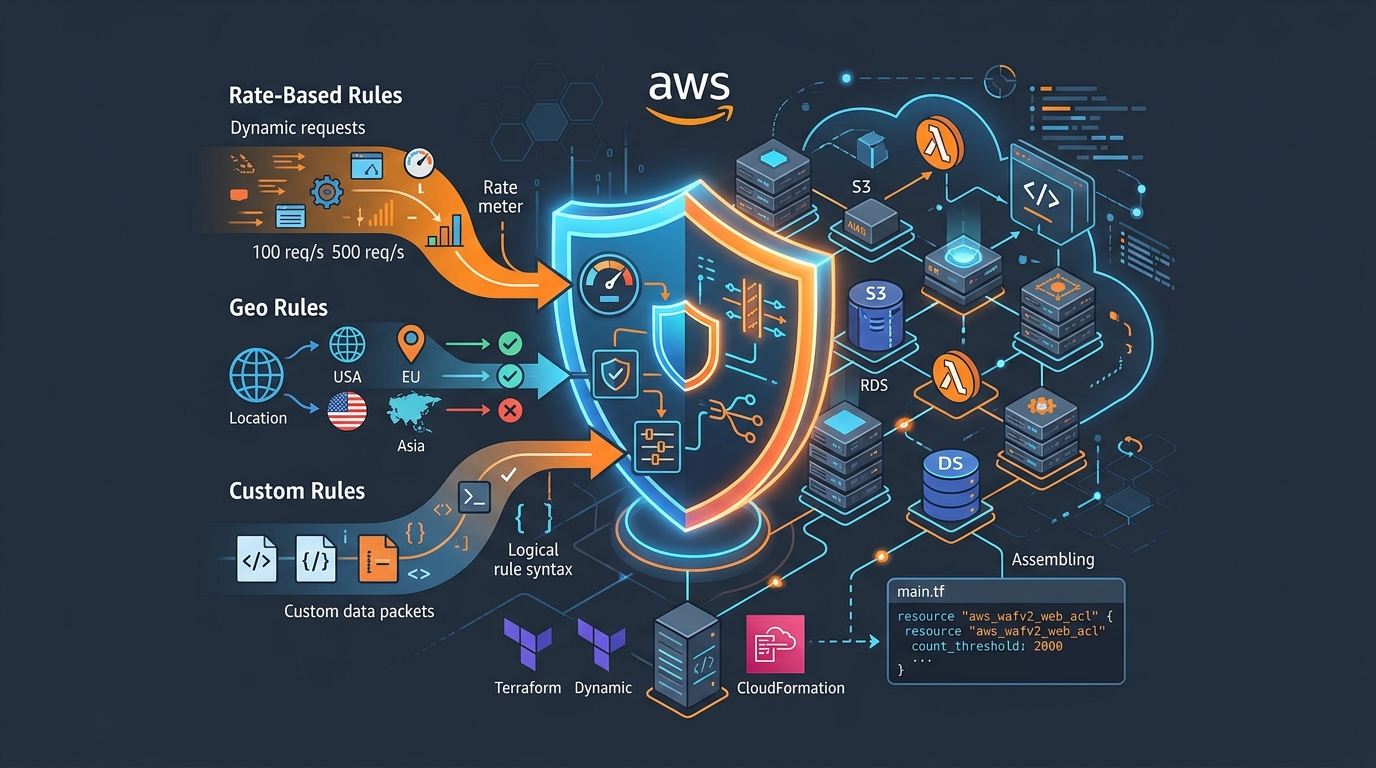
AWS WAF Rules Deep Dive: Rate-Based, Geo, and Custom Rules
WAF is one of those services where the default managed rules get you 80% of the way there. The last 20% is where it gets interesting.
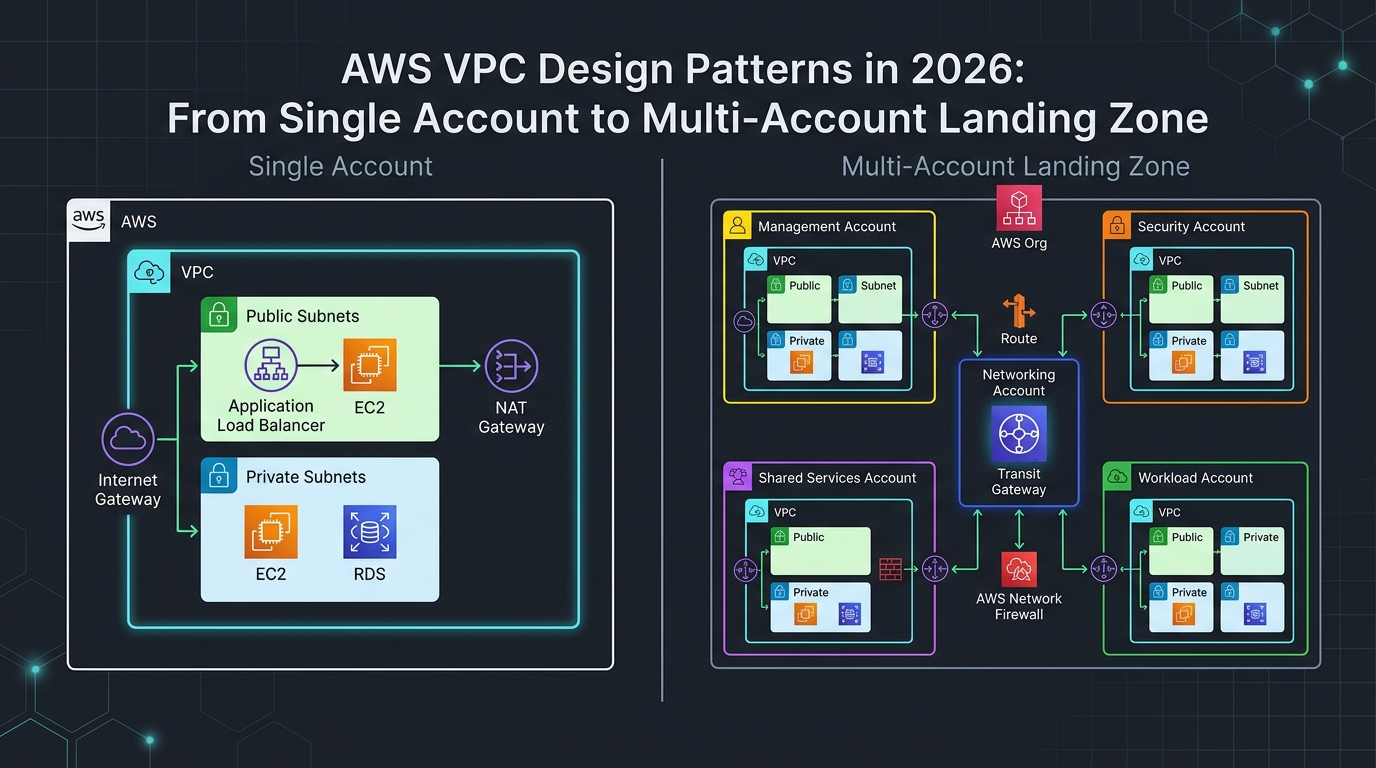
AWS VPC Design Patterns in 2026: From Single Account to Multi-Account Landing Zone
The VPC decisions you make on day one will follow you for years. I’ve lived through the consequences—redesigning a network that was built without proper CIDR planning, watching a simple...

Comments