
AWS IAM Identity Center: The Right Way to Manage SSO and Multi-Account Access

AWS renamed AWS Single Sign-On to IAM Identity Center in 2022, which confused a lot of people who were still searching for “AWS SSO” in the console. The name changed; the functionality expanded. IAM Identity Center is now the recommended way to give humans access to AWS accounts — not IAM users with long-term credentials, not per-account federated roles managed separately in each account. One central place that handles who gets access, to what accounts, with what permissions, across your entire AWS organization.
Most teams reach for IAM users when they start. It’s the obvious path: create a user, generate access keys, add them to a group. For a single account with one or two engineers, it’s fine. Once you have three accounts or five engineers, the credential management becomes painful. IAM Identity Center removes that pain.
What IAM Identity Center Actually Does
Strip away the marketing language and IAM Identity Center does two concrete things. First, it gives users a web portal where they sign in once and see every AWS account they have access to. Second, it controls what permissions they get in each account through something called permission sets. Those two pieces together replace the mess of per-account IAM users that most teams accumulate over time.
When a user authenticates through Identity Center, they get temporary credentials scoped to the specific account and permission set they selected. No long-term access keys. Credentials expire automatically — typically one hour, configurable up to 12 hours per session. If a user’s account gets disabled in your identity provider, they lose AWS access immediately, not “whenever their access key gets rotated.”
This is the fundamental difference from managing IAM users per account. An IAM user’s access key exists until you manually delete it. A leaked key from an engineer who left six months ago can still work if nobody cleaned it up. IAM Identity Center credentials expire automatically and are tied to active directory membership or IdP status.
Identity Sources
IAM Identity Center supports three identity sources: the built-in Identity Center directory, Active Directory via AWS Directory Service, and external identity providers via SAML 2.0 with SCIM provisioning.
Built-in directory: Create users directly in Identity Center. Good for getting started, but means another set of credentials for users to manage. No SCIM sync. Best for small teams without an existing IdP.
Active Directory: Connect via AWS Directory Service (either Managed Microsoft AD or AD Connector). Users authenticate with their existing corporate credentials. Group memberships from AD flow into Identity Center assignments. No separate user provisioning step — users already exist in AD.
External IdP (Okta, Azure AD, Google Workspace): Connect via SAML 2.0 for authentication and SCIM for automatic user and group provisioning. This is the enterprise path. When someone joins your company and gets added to Okta, they appear in Identity Center automatically. When they leave and their Okta account is deprovisioned, their Identity Center access goes with it. No manual cleanup.
Setting up Okta as an external IdP requires configuring Identity Center as a SAML application in Okta, copying the SAML metadata URL and ACS endpoint, and enabling SCIM with a bearer token. The whole process takes about 30 minutes. Once done, any Okta group you assign to an Identity Center permission set will automatically provision users from that group.
Permission Sets
Think of a permission set as a role definition you write once and apply to many accounts. Under the hood, Identity Center takes your permission set and creates an actual IAM role in each target account — named AWSReservedSSO_<YourPermissionSetName>_<random>. You never manage those roles directly. You manage the permission set, and Identity Center keeps the roles in sync.
Permission Set: DeveloperAccess
  - AWS managed: PowerUserAccess
  - Customer managed: DenyBillingAccess (prevents viewing billing)
  - Session duration: 8 hours

Permission Set: ReadOnly
  - AWS managed: ReadOnlyAccess
  - Session duration: 4 hours

Permission Set: AdminAccess
  - AWS managed: AdministratorAccess
  - Session duration: 1 hour (shorter for high-privilege)
When you assign a permission set to a user or group on an account, Identity Center creates an IAM role in that target account named AWSReservedSSO_<PermissionSetName>_<random>. Users who select that account and permission set in the portal assume that role and receive temporary credentials.
The key insight is that you define permission sets once and apply them across many accounts. If you update the DeveloperAccess permission set, the change propagates to every account where it’s assigned. No need to update 15 separate IAM roles in 15 accounts.
Multi-Account Access Setup
The typical setup for an organization with separate development, staging, and production accounts:
Identity Center:
  Groups:
    - developers
    - devops
    - platform-team
    - readonly

  Permission Sets:
    - DeveloperAccess (PowerUserAccess + DenyBilling)
    - DevOpsAccess (AdministratorAccess, 1h session)
    - ReadOnly (ReadOnlyAccess)

  Account Assignments:
    - developers → DeveloperAccess → dev account
    - developers → ReadOnly → staging account
    - devops → DevOpsAccess → dev account
    - devops → DevOpsAccess → staging account
    - devops → DevOpsAccess → prod account
    - platform-team → DevOpsAccess → all accounts
    - readonly → ReadOnly → all accounts
Developers can freely work in the dev account and view staging, but can’t touch production. DevOps has admin access everywhere but with a 1-hour session that forces re-authentication. Platform team mirrors DevOps. Contractors get the ReadOnly permission set on specific accounts only.
The permission model is additive — users might belong to multiple groups, and all assignments accumulate. A user in both developers and devops gets both sets of access.
CLI and SDK Access
The old aws configure with long-term access keys is the wrong approach for Identity Center users. The CLI has native SSO support:
# Configure a profile that uses Identity Center
aws configure sso

# Follow the prompts:
# SSO session name: my-company
# SSO start URL: https://my-company.awsapps.com/start
# SSO region: us-east-1
# Select the account and permission set from the list
# CLI default client Region: us-east-1
# CLI default output format: json
# CLI profile name: dev-developer
This creates a profile in ~/.aws/config that knows how to authenticate via Identity Center. When you run a command with that profile, the CLI opens a browser for authentication if needed, exchanges the token for temporary credentials, and caches them locally for the session duration.
# Use the profile for a command
aws s3 ls --profile dev-developer

# Or set as default for the session
export AWS_PROFILE=dev-developer

# Log in (opens browser)
aws sso login --profile dev-developer

# Refresh credentials if they expire mid-session
aws sso login --profile dev-developer

# Log out (revokes the SSO session)
aws sso logout
For teams that need to access multiple accounts, aws-vault works with Identity Center profiles and provides additional security by keeping credentials encrypted in the OS keychain rather than in plaintext config files.
For CI/CD pipelines, IAM Identity Center is the wrong tool — pipelines should use OIDC-based credential federation or IAM roles with instance profiles. Identity Center is for human access. Mixing automated access into Identity Center complicates auditing and creates credentials that don’t automatically expire cleanly in pipeline contexts.
MFA Configuration
Identity Center supports MFA at the application level, independent of what your IdP enforces. Three configuration options:
Disabled: No MFA enforced by Identity Center (rely on IdP MFA if configured there).
Optional: Users can register MFA devices but aren’t required to use them.
Required: Users must register and use an MFA device to sign in. Recommended for production environments.
For external IdP setups, MFA is typically handled by the IdP (Okta, Azure AD). In that case, set Identity Center MFA to Disabled and configure MFA enforcement in your IdP policies. Dual MFA enforcement is redundant and frustrating for users.
Supported MFA types: TOTP authenticator apps (Authy, Google Authenticator, 1Password), FIDO2 security keys (YubiKey), and passkeys. FIDO2 keys are more phishing-resistant than TOTP and worth recommending to engineers with production access.
Attribute-Based Access Control
ABAC in Identity Center lets you write permission policies that use user attributes (department, team, cost center) from your IdP as conditions. Instead of creating separate permission sets for each team, one permission set can grant access to resources tagged with matching attributes:
{
  "Effect": "Allow",
  "Action": "s3:*",
  "Resource": "arn:aws:s3:::*",
  "Condition": {
    "StringEquals": {
      "aws:ResourceTag/team": "${identitystore:UserAttribute/team}"
    }
  }
}
A user with team=platform in the IdP can only access S3 buckets tagged team=platform. Same permission set, different effective access based on the user’s attributes. This scales much better than maintaining dozens of permission sets for different teams.
ABAC requires configuring attribute mappings between your IdP and Identity Center, and requires consistent resource tagging. The upfront investment pays off when you have 20+ teams all needing account access with slightly different scope.
Auditing and Monitoring
Every Identity Center authentication and role assumption appears in CloudTrail. The events to watch:
sso.amazonaws.com:Authenticate — user signed in through the portal. Failed authentication shows here with the failure reason.
sso.amazonaws.com:ListAccountRoles — user browsed their available accounts and roles. Normal activity.
sso-oauth.amazonaws.com:CreateTokenWithIAM — token exchange that produces the temporary credentials for an account session.
sts:AssumeRoleWithSAML — the actual role assumption in the target account.
Set up CloudWatch Logs Insights queries on your CloudTrail logs to alert on failed authentication spikes or unusual access patterns. A user authenticating from an unfamiliar geography or outside business hours is worth an alert. CloudTrail Management Events captures all of these by default.
Pricing
IAM Identity Center itself is free. No charge for users, groups, permission sets, or assignments. The only related costs are Directory Service charges if you’re using AWS Managed Microsoft AD ($0.10/hour in us-east-1, ~$72/month for a single domain). External IdP setups via SAML/SCIM have no AWS charges beyond Identity Center.
Compare this to managing IAM users across accounts: same capabilities (centralized access, MFA, audit trails) with less operational overhead and no additional AWS cost. The IAM roles and policies guide has more on why IAM users are the wrong model for human access at scale, and how permission boundaries work for the cases where you’re delegating role creation to developers.
Migration from IAM Users
If your team is currently using IAM users with long-term access keys, migration to Identity Center is worth the one-time investment. The steps:
- Enable IAM Identity Center in your management account.
- Choose or configure your identity source.
- Create permission sets matching your current IAM user policies.
- Create account assignments (users/groups → permission sets → accounts).
- Notify users to set up their SSO profile with
aws configure sso. - After a transition period, disable the IAM user access keys (don’t delete users yet in case rollback is needed).
- Monitor CloudTrail for any old access key usage.
- Delete IAM users once confirmed inactive.
The hardest part is usually getting engineers to switch their local CLI profile. The actual Identity Center setup takes a few hours. Running both in parallel during the transition gives users time to migrate without interrupting their work.
For production accounts with automated workloads using IAM users, move those to IAM roles with instance profiles or OIDC federation before disabling the users — they’re not Identity Center candidates anyway.
Explore more like this

Aurora Serverless v2 + Bedrock: AI Database Queries in 2026
I connected Bedrock to our Aurora cluster last month. The first thing I asked it was “show me all customers who churned in Q1 but came back in Q2” —...
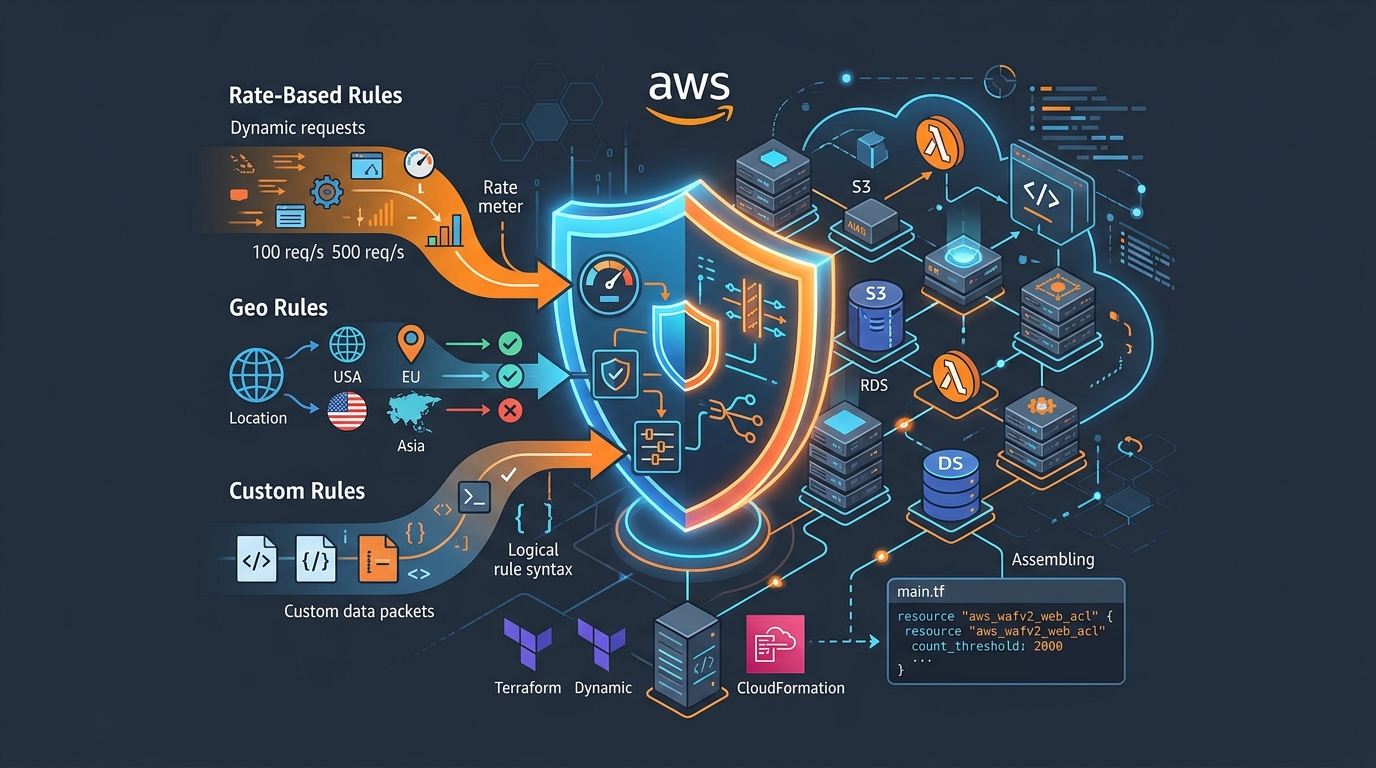
AWS WAF Rules Deep Dive: Rate-Based, Geo, and Custom Rules
WAF is one of those services where the default managed rules get you 80% of the way there. The last 20% is where it gets interesting.
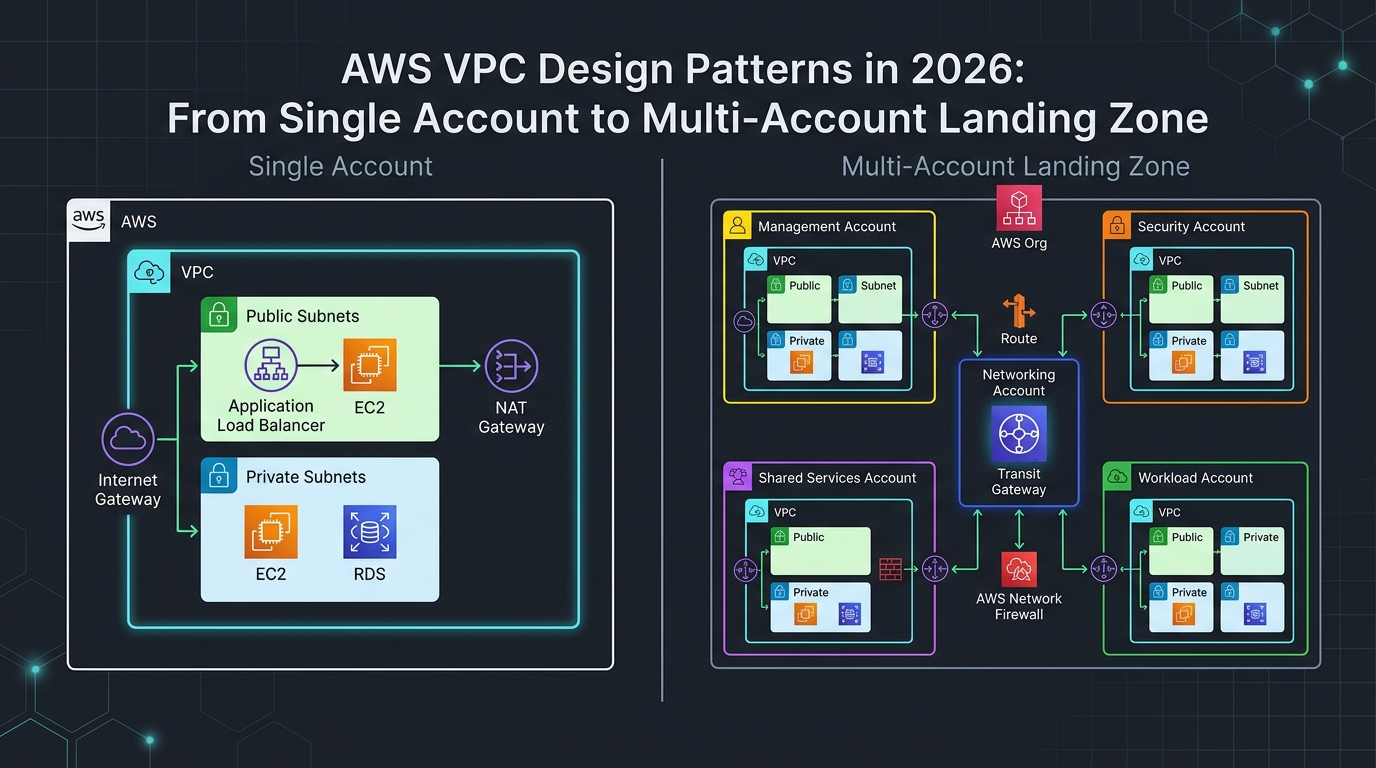
AWS VPC Design Patterns in 2026: From Single Account to Multi-Account Landing Zone
The VPC decisions you make on day one will follow you for years. I’ve lived through the consequences—redesigning a network that was built without proper CIDR planning, watching a simple...

Comments