
AWS Macie: Find PII in S3 Before Regulators Do


When a fintech company discovered in late 2023 that 14 months of customer transaction exports — including names, account numbers, and partial SSNs — had been sitting in a public S3 bucket, the bucket wasn’t new. It had been created by a data team for a one-time reporting job and never cleaned up. Nobody knew it existed. The regulatory notification cost significantly more than the Macie subscription would have. That story repeats across industries with uncomfortable regularity.
AWS Macie uses machine learning and pattern matching to scan S3 buckets for sensitive data. It finds PII, financial data, health records, API credentials, and whatever custom data formats you define. It also continuously monitors bucket configurations and flags misconfigurations like public access or missing encryption. This guide covers what Macie actually detects, how to structure discovery jobs, custom identifiers for proprietary data, and the cost model.
What Macie Detects
Macie has two finding categories. Policy findings come from continuous monitoring of your S3 bucket configurations — no active scanning required. Sensitive data findings come from discovery jobs that inspect object content.
Policy finding types:
Policy:IAMUser/S3BlockPublicAccessDisabled— Block Public Access was turned off on a bucketPolicy:IAMUser/S3BucketEncryptionDisabled— default encryption removed from a bucketPolicy:IAMUser/S3BucketPublic— bucket ACL or policy makes it publicly readable/writablePolicy:IAMUser/S3BucketSharedExternally— bucket policy grants access to an external accountPolicy:IAMUser/S3BucketReplicatedExternally— replication sends objects to an external account
These fire within minutes of a configuration change. You don’t need to run a discovery job to catch someone accidentally making a bucket public.
Sensitive data finding types identify categories of sensitive information found in object content:
SensitiveData:S3Object/Credentials— API keys, secret keys, access tokens, passwordsSensitiveData:S3Object/Financial— credit card numbers, bank account numbers, routing numbersSensitiveData:S3Object/Personal— names + SSNs, passport numbers, driver’s licenses, health infoSensitiveData:S3Object/Multiple— multiple categories found in the same objectSensitiveData:S3Object/CustomIdentifier— matches a custom data identifier you defined
Macie ships with over 100 managed data identifiers covering data types for 30+ countries. US SSNs, UK National Insurance numbers, EU passport numbers, Australian TFNs — all detected out of the box without configuration.
Enabling Macie
# Enable Macie in your account
aws macie2 enable-macie \
  --finding-publishing-frequency FIFTEEN_MINUTES

# Enable for an AWS Organization (run from delegated admin account)
aws macie2 enable-organization-admin-account \
  --admin-account-id 999999999999

# Auto-enable for new organization member accounts
aws macie2 update-organization-configuration \
  --auto-enable

# Check status
aws macie2 get-macie-session
Once enabled, Macie immediately starts monitoring bucket configurations and generates policy findings within minutes. It builds an inventory of all S3 buckets in your account — bucket names, access controls, encryption settings, replication configuration, object counts, storage size.
Running Sensitive Data Discovery Jobs
The bucket inventory is passive. Sensitive data discovery requires a job that actively reads object content. You can run one-time jobs or scheduled jobs:
# One-time job scanning specific buckets
aws macie2 create-classification-job \
  --job-type ONE_TIME \
  --name "CustomerDataAudit-2026-06" \
  --s3-job-definition '{
    "bucketDefinitions": [
      {
        "accountId": "123456789012",
        "buckets": ["customer-exports", "data-warehouse-exports", "analytics-output"]
      }
    ],
    "scoping": {
      "includes": {
        "and": [
          {
            "simpleScopeTerm": {
              "comparator": "GT",
              "key": "OBJECT_SIZE",
              "values": ["0"]
            }
          }
        ]
      }
    }
  }' \
  --managed-data-identifier-selector ALL
For ongoing discovery, use SCHEDULED jobs that run daily or weekly on your most sensitive buckets. Scanning everything continuously is expensive — prioritize buckets that receive customer data, application logs, database exports, or audit data:
# Scheduled job running weekly on sensitive buckets
aws macie2 create-classification-job \
  --job-type SCHEDULED \
  --schedule-frequency '{"weeklySchedule":{"dayOfWeek":"MONDAY"}}' \
  --name "WeeklySensitiveBucketScan" \
  --s3-job-definition '{
    "bucketDefinitions": [
      {
        "accountId": "123456789012",
        "buckets": ["prod-customer-data", "audit-logs", "compliance-exports"]
      }
    ]
  }' \
  --managed-data-identifier-selector ALL
The managed-data-identifier-selector can be ALL (scan for everything), RECOMMENDED (high-confidence identifiers), NONE (only custom identifiers), or INCLUDE/EXCLUDE to list specific identifier types.
Custom Data Identifiers
Managed identifiers cover standard PII formats. Custom data identifiers let you define patterns for proprietary data — internal employee IDs, policy numbers, account formats specific to your business:
# Create a custom identifier for an internal account format: ACC-XXXXXXXX
aws macie2 create-custom-data-identifier \
  --name "InternalAccountNumber" \
  --description "Matches internal account format ACC-XXXXXXXX" \
  --regex "ACC-[0-9]{8}" \
  --keywords '["account", "ACC", "customer"]' \
  --maximum-match-distance 50 \
  --ignore-words '["ACCOUNT-TYPE", "ACC-TEST"]'

# The keywords field requires the regex match to appear within
# 50 characters of one of these keywords — reduces false positives
The keywords field is the most important tuning mechanism. Without it, a regex for an 8-digit number format would match far too broadly. Requiring a nearby keyword like “account” or “customer” dramatically reduces false positives.
Test your custom identifier before running a full job:
# Test against sample text
aws macie2 test-custom-data-identifier \
  --regex "ACC-[0-9]{8}" \
  --keywords '["account"]' \
  --maximum-match-distance 50 \
  --sample-text "Customer account ACC-12345678 was created on 2026-01-15"
The response shows how many matches Macie would find in that sample text. Iterate on the regex and keyword list until it matches correctly before running a discovery job.
Reviewing Findings
Findings appear in the Macie console and publish to EventBridge within 15 minutes (configurable). Each sensitive data finding includes:
- The S3 bucket and object path where sensitive data was found
- The category and types of sensitive data detected
- Sample occurrences (Macie shows up to 15 examples of where in the object the data appears)
- Severity based on the number of occurrences
Getting sample occurrences requires an additional API call — they’re not included in the finding by default to avoid logging sensitive data:
# Get finding details including sample occurrences
FINDING_ID="abc123def456"

aws macie2 get-sensitive-data-occurrences \
  --job-id $FINDING_ID
The samples show character offsets and a redacted preview, enough to understand what data was found without exposing the full sensitive content in Macie’s storage.
Automating Response to Sensitive Data Findings
Wire findings to EventBridge for automated notification or remediation:
import boto3
import json

def handler(event, context):
    finding = event['detail']
    finding_type = finding.get('type', '')

    # Handle public bucket policy findings
    if 'BucketPublic' in finding_type or 'BlockPublicAccessDisabled' in finding_type:
        bucket_name = finding['resourcesAffected']['s3Bucket']['name']

        s3 = boto3.client('s3')
        s3.put_public_access_block(
            Bucket=bucket_name,
            PublicAccessBlockConfiguration={
                'BlockPublicAcls': True,
                'IgnorePublicAcls': True,
                'BlockPublicPolicy': True,
                'RestrictPublicBuckets': True
            }
        )
        print(f"Auto-remediated: blocked public access on {bucket_name}")

    # Notify on sensitive data in unexpected buckets
    if finding_type.startswith('SensitiveData'):
        bucket = finding['resourcesAffected']['s3Bucket']['name']
        severity = finding['severity']['description']
        categories = [
            t['name'] for t in
            finding.get('classificationDetails', {})
                   .get('result', {})
                   .get('sensitiveData', [])
        ]

        sns = boto3.client('sns')
        sns.publish(
            TopicArn='arn:aws:sns:us-east-1:123456789012:security-alerts',
            Subject=f"Macie [{severity}] Sensitive Data in {bucket}",
            Message=f"Categories: {categories}\nFinding: {json.dumps(finding, indent=2, default=str)}"
        )
For the public bucket case, automatic remediation makes sense — a publicly accessible bucket containing sensitive data is an emergency that shouldn’t wait for human review. For sensitive data findings in internal buckets, notification plus a ticket is usually the right response.
Cost Model
Macie pricing has two components. Bucket inventory and monitoring: $1.00 per bucket per month, covering continuous policy finding evaluation. Sensitive data discovery: $1.00 per GB of object data scanned.
A typical mid-sized account with 50 buckets costs $50/month just for the monitoring component. Running discovery jobs against 100 GB of data adds $100. Total: $150/month for continuous monitoring plus a reasonable monthly scan coverage.
The cost scales directly with the number of buckets and data volume you scan. To manage costs:
- Use bucket tags or criteria in job definitions to exclude low-risk buckets (logs-only, temp data, public content)
- Run discovery jobs on a sampling basis for large buckets — Macie’s sampling option scans a percentage of objects rather than everything
- Use
RECOMMENDEDmanaged identifiers instead ofALLto reduce false positives and keep finding volume manageable
The 30-day free trial includes monitoring for up to 1,000 buckets and doesn’t charge for discovery jobs during the trial period. Run the trial, look at the cost estimate in the Macie console, and scope your ongoing configuration from there.
Macie works best as part of a broader security posture. The AWS Security Hub guide covers how Macie findings flow into Security Hub for unified visibility alongside findings from GuardDuty and Inspector. For the S3 bucket policies and encryption settings that Macie monitors for drift, the AWS IAM roles and policies guide covers the IAM side of locking down S3 access.
The specific buckets worth scanning first: application log buckets (often accidentally contain request bodies with PII), database export buckets (CSV exports from production databases), analytics staging buckets (where raw event data lands before processing), and any bucket with “backup” or “archive” in the name.
Explore more like this

Aurora Serverless v2 + Bedrock: AI Database Queries in 2026
I connected Bedrock to our Aurora cluster last month. The first thing I asked it was “show me all customers who churned in Q1 but came back in Q2” —...
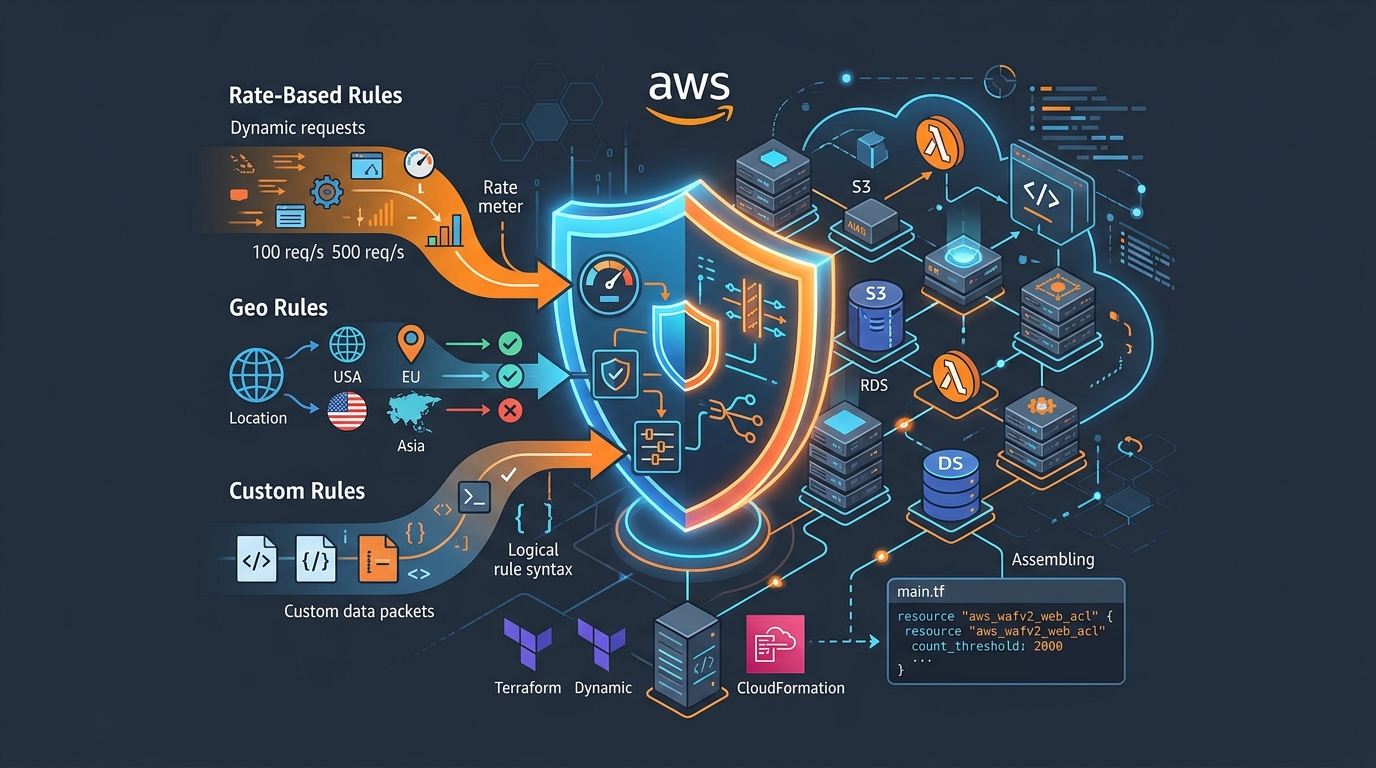
AWS WAF Rules Deep Dive: Rate-Based, Geo, and Custom Rules
WAF is one of those services where the default managed rules get you 80% of the way there. The last 20% is where it gets interesting.
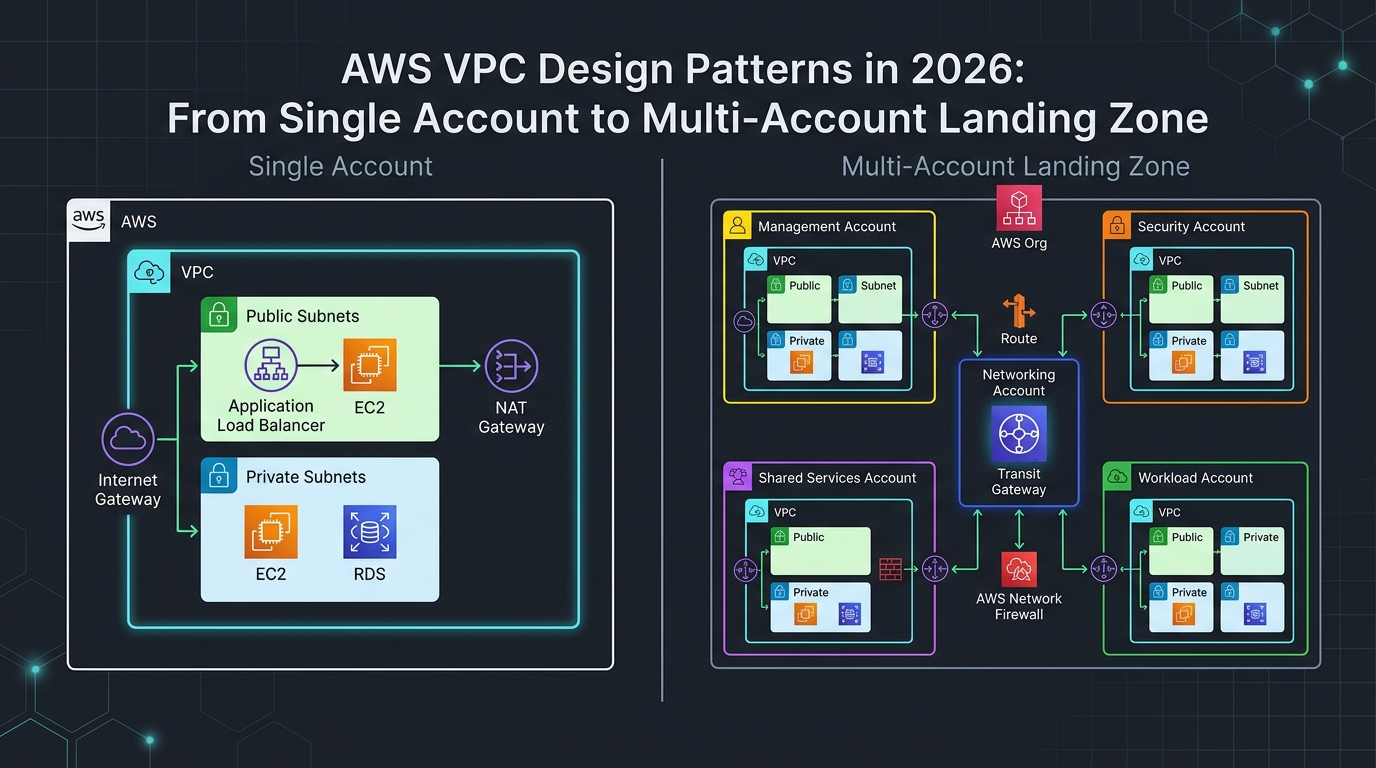
AWS VPC Design Patterns in 2026: From Single Account to Multi-Account Landing Zone
The VPC decisions you make on day one will follow you for years. I’ve lived through the consequences—redesigning a network that was built without proper CIDR planning, watching a simple...

Comments