
GitLab CI/CD + Terraform: A Production IaC Pipeline in 2026

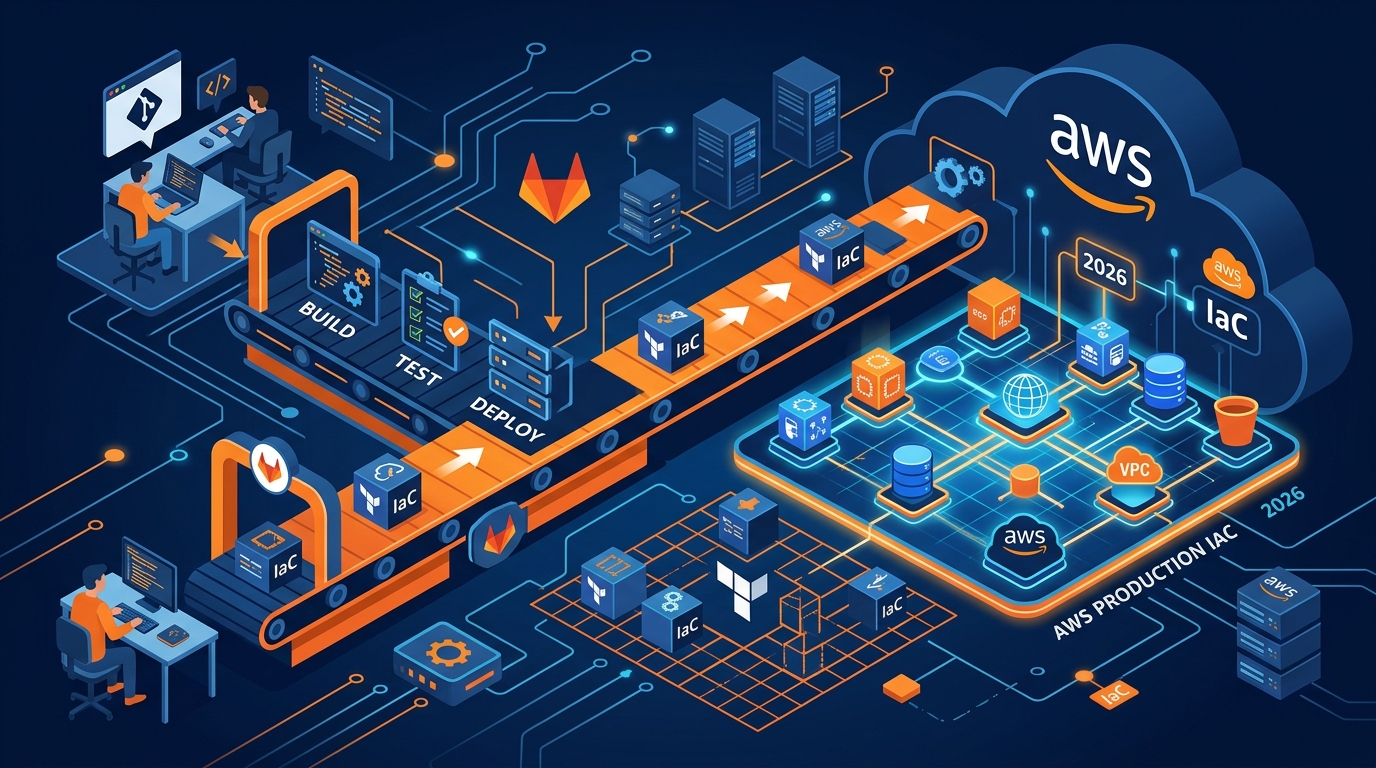
Most tutorials show you how to run terraform apply on a git push and call it a day. I’ve inherited infrastructure built that way. It’s chaos. Drift accumulates silently. Rollbacks become guessing games. State files get corrupted. The person who ran the apply last Tuesday doesn’t remember what changed or why.
A production Terraform pipeline needs guardrails. It needs to separate planning from applying. It needs manual gates on production changes. It needs state locking so two engineers don’t try to update infrastructure simultaneously. It needs drift detection running on a schedule, alerting you when reality diverges from code.
This post walks through building that pipeline with GitLab CI/CD. Everything here runs in my production AWS environment. The mistakes I’ll point out are ones I made or cleaned up after others did.
The Right Pipeline Shape
The pipeline looks like this: validate → plan → apply. Not “validate and apply immediately.” That’s the critical distinction.
Your validate stage runs on every commit. It catches syntax errors, missing variables, formatting issues. It’s fast and cheap. You want this feedback in the merge request before humans start reviewing code.
Your plan stage generates what Terraform will actually do. You save the plan as an artifact. This matters: the plan is deterministic. The same plan file applied twice produces the same result. If your merge request shows a plan, that’s exactly what will happen when it applies. Not something similar. Exactly that.
Your apply stage takes the saved plan and executes it. For development environments, this can be automatic. For production, it’s manual. A human reviews the plan, approves it, and then the pipeline applies it. This approval happens in GitLab’s UI with a simple click. No re-running terraform locally. No skipping it because “I already reviewed the plan in the MR.”
State Management: S3 + DynamoDB
Terraform state is a database. Your infrastructure is stored in that database. If it gets corrupted, you lose track of what you own. If two people apply simultaneously, the state becomes inconsistent. If you lose it entirely, Terraform thinks your infrastructure is gone, even though it still exists in AWS.
S3 is where you store it. DynamoDB is where you store the lock file. The lock prevents simultaneous applies. When Terraform acquires the lock, it writes metadata: who acquired it, when, their process ID. If something crashes while holding the lock, you can forcefully remove it, but you’ll see who and when. No mystery crashes.
The backend configuration goes in backend.tf:
terraform {
  backend "s3" {
    bucket         = "mycompany-terraform-state"
    key            = "prod/terraform.tfstate"
    region         = "us-east-1"
    encrypt        = true
    dynamodb_table = "terraform-locks"
  }
}
Create the S3 bucket with versioning enabled. Every change to state gets a new version. You can recover an old state if something goes sideways. Create the DynamoDB table with id as the primary key. Terraform expects that exact schema.
I don’t recommend using GitLab’s managed Terraform state feature unless you’re entirely within the GitLab ecosystem and not using AWS. For AWS workloads, S3 + DynamoDB is more flexible. You can reference the state from scripts outside GitLab. You can switch CI/CD systems later without data loss. You can audit state changes in S3 versioning history.
Secrets and IAM Roles
Here’s where most setups get it wrong. They store AWS access keys in GitLab CI variables. Those keys live in plaintext in the runner environment. They get logged. They end up in shell history. Someone’s git config might have credentials. It’s a mess waiting to happen.
The right approach is OIDC. GitLab can issue short-lived tokens. AWS accepts those tokens as proof that a specific GitLab pipeline is running. You exchange the token for temporary AWS credentials. No long-lived keys. No secrets in variables. Just tokens valid for minutes.
Setup is straightforward. You create an IAM role in AWS. You tell it: “Trust OIDC tokens from my GitLab instance.” You attach permissions for Terraform to manage your infrastructure. Your pipeline asks GitLab for a token, uses it to assume the role, and then runs Terraform.
The IAM trust policy looks like this:
{
  "Version": "2012-10-17",
  "Statement": [
    {
      "Effect": "Allow",
      "Principal": {
        "Federated": "arn:aws:iam::ACCOUNT_ID:oidc-provider/gitlab.com"
      },
      "Action": "sts:AssumeRoleWithWebIdentity",
      "Condition": {
        "StringEquals": {
          "gitlab.com:aud": "https://gitlab.com"
        },
        "StringLike": {
          "gitlab.com:sub": "project_path:mycompany/myproject:ref_type:branch:ref:main"
        }
      }
    }
  ]
}
The sub condition restricts which projects and branches can assume this role. Only the main branch of a specific project can use it. You’d create different roles for different environments or projects.
The Complete Pipeline
Here’s a production-ready .gitlab-ci.yml:
variables:
  AWS_REGION: us-east-1
  TF_ROOT: ${CI_PROJECT_DIR}/terraform
  TF_VERSION: 1.8.0

stages:
  - validate
  - plan
  - apply

validate:
  stage: validate
  image: hashicorp/terraform:${TF_VERSION}
  script:
    - cd ${TF_ROOT}
    - terraform fmt -check -recursive
    - terraform init -backend=false
    - terraform validate
  artifacts:
    reports:
      terraform: ${TF_ROOT}/plan.json
  only:
    - merge_requests
    - branches

plan:
  stage: plan
  image: hashicorp/terraform:${TF_VERSION}
  before_script:
    - cd ${TF_ROOT}
    - apk add --no-cache curl jq
    - |
      export AWS_ROLE_ARN="arn:aws:iam::${AWS_ACCOUNT_ID}:role/terraform-${CI_ENVIRONMENT_NAME}"
      export AWS_WEB_IDENTITY_TOKEN_FILE=/tmp/web_identity_token
      export AWS_SESSION_NAME="gitlab-ci-${CI_PROJECT_ID}-${CI_PIPELINE_ID}"
      echo ${CI_JOB_JWT_V2} > ${AWS_WEB_IDENTITY_TOKEN_FILE}
  script:
    - terraform init
    - terraform plan -out=tfplan -var="environment=${CI_ENVIRONMENT_NAME}" -json > plan.json
    - terraform show -json tfplan > tfplan.json
  artifacts:
    paths:
      - ${TF_ROOT}/tfplan
      - ${TF_ROOT}/tfplan.json
      - ${TF_ROOT}/plan.json
    expire_in: 1 day
  only:
    - merge_requests
    - branches

plan:dev:
  extends: plan
  environment:
    name: dev
  variables:
    AWS_ACCOUNT_ID: "111111111111"

plan:prod:
  extends: plan
  environment:
    name: prod
  variables:
    AWS_ACCOUNT_ID: "222222222222"
  only:
    - main
    - tags

apply:dev:
  stage: apply
  image: hashicorp/terraform:${TF_VERSION}
  environment:
    name: dev
  variables:
    AWS_ACCOUNT_ID: "111111111111"
  before_script:
    - cd ${TF_ROOT}
    - |
      export AWS_ROLE_ARN="arn:aws:iam::${AWS_ACCOUNT_ID}:role/terraform-dev"
      export AWS_WEB_IDENTITY_TOKEN_FILE=/tmp/web_identity_token
      export AWS_SESSION_NAME="gitlab-ci-${CI_PROJECT_ID}-${CI_PIPELINE_ID}"
      echo ${CI_JOB_JWT_V2} > ${AWS_WEB_IDENTITY_TOKEN_FILE}
  script:
    - terraform init
    - terraform apply -auto-approve tfplan
  dependencies:
    - plan:dev
  when: on_success
  only:
    - branches

apply:prod:
  stage: apply
  image: hashicorp/terraform:${TF_VERSION}
  environment:
    name: prod
  variables:
    AWS_ACCOUNT_ID: "222222222222"
  before_script:
    - cd ${TF_ROOT}
    - |
      export AWS_ROLE_ARN="arn:aws:iam::${AWS_ACCOUNT_ID}:role/terraform-prod"
      export AWS_WEB_IDENTITY_TOKEN_FILE=/tmp/web_identity_token
      export AWS_SESSION_NAME="gitlab-ci-${CI_PROJECT_ID}-${CI_PIPELINE_ID}"
      echo ${CI_JOB_JWT_V2} > ${AWS_WEB_IDENTITY_TOKEN_FILE}
  script:
    - terraform init
    - terraform apply tfplan
  dependencies:
    - plan:prod
  when: manual
  only:
    - main
    - tags
Let me break down the key pieces.
The validate stage runs on every commit and every merge request. It checks formatting with terraform fmt -check. It validates syntax with terraform validate. It does this without connecting to any backend, so it’s fast. Ten seconds, fifteen at most.
The plan stage initializes Terraform, acquires the lock, generates a plan. That plan is saved as both a binary artifact and a JSON artifact. The JSON version is what you post to the merge request so reviewers can see what changes before they approve. The binary version is what apply uses. This guarantee is important: the apply uses the exact same plan that was reviewed.
The before_script for both plan and apply handles OIDC. It retrieves the JWT token that GitLab provides, writes it to a file, and sets environment variables. AWS SDK reads these and uses them to assume the role. It’s all automatic. No key management.
Development environments auto-apply on success. Production requires manual approval. You click “Approve” in the pipeline UI. The apply job runs. You can watch logs in real time.
The when: on_success for dev means: only apply if plan succeeded. The when: manual for prod means: don’t apply automatically, wait for human approval.
Versions and Provider Configuration
Your root module needs a versions.tf file that pins Terraform version and provider versions:
terraform {
  required_version = ">= 1.8.0"

  required_providers {
    aws = {
      source  = "hashicorp/aws"
      version = "~> 5.40"
    }
  }
}

provider "aws" {
  region = var.aws_region

  default_tags {
    tags = {
      Environment = var.environment
      ManagedBy   = "Terraform"
      Repository  = "https://gitlab.com/mycompany/infrastructure"
    }
  }
}
Pinning versions prevents surprises. >= 1.8.0 means you’ll accept updates but you know you’re at least on 1.8. The AWS provider at ~> 5.40 means 5.40 through 5.99. You won’t jump to 6.0 automatically.
The default_tags block is hugely useful. Every resource automatically gets these tags. You always know what environment something is in, who created it, which repo manages it. Finding unmanaged or orphaned resources becomes a simple tag filter in the AWS console.
Environment-Specific Configurations
You have two options: workspaces or directories. I prefer directories.
Workspaces are Terraform’s built-in approach. You run terraform workspace select dev and then terraform apply operates on the dev workspace. Everything is in one directory. State files get stored separately per workspace. It works, but it’s easy to accidentally apply to the wrong workspace if you’re tired.
Directories are cleaner for CI/CD. You have terraform/dev/ and terraform/prod/. Each has its own backend configuration, its own variables, its own state. The pipeline explicitly targets a directory. There’s no accidental workspace switching.
Create separate directories:
terraform/
├── modules/
│   ├── vpc/
│   ├── eks/
│   └── rds/
├── dev/
│   ├── main.tf
│   ├── variables.tf
│   ├── outputs.tf
│   └── terraform.tfvars
├── prod/
│   ├── main.tf
│   ├── variables.tf
│   ├── outputs.tf
│   └── terraform.tfvars
└── shared/
    └── backend.tf
Each environment directory has its own terraform.tfvars with environment-specific values. The shared backend configuration is sourced by both. Your pipeline knows: dev means run in the dev directory with dev variables.
Plan Output in Merge Requests
Reviewers should see what Terraform will do without leaving GitLab. You post the plan output as a comment on the merge request automatically.
Here’s a script to do it:
#!/bin/bash

set -e

PROJECT_ID="${CI_PROJECT_ID}"
MR_IID="${CI_MERGE_REQUEST_IID}"
GITLAB_TOKEN="${CI_JOB_TOKEN}"
GITLAB_API="https://gitlab.com/api/v4"

PLAN_FILE="${TF_ROOT}/plan.json"

if [ ! -f "${PLAN_FILE}" ]; then
  echo "Plan file not found: ${PLAN_FILE}"
  exit 1
fi

PLAN_OUTPUT=$(jq -r '.resource_changes[] | select(.change.actions != ["no-op"]) | "\(.type).\(.name): \(.change.actions | join(" -> "))"' "${PLAN_FILE}")

if [ -z "${PLAN_OUTPUT}" ]; then
  PLAN_OUTPUT="No infrastructure changes"
fi

COMMENT="## Terraform Plan

\`\`\`
${PLAN_OUTPUT}
\`\`\`

Generated by GitLab CI pipeline \`${CI_PIPELINE_ID}\`"

curl -s -X POST \
  "${GITLAB_API}/projects/${PROJECT_ID}/merge_requests/${MR_IID}/notes" \
  -H "PRIVATE-TOKEN: ${GITLAB_TOKEN}" \
  -d "body=${COMMENT}" > /dev/null

echo "Plan posted to merge request"
Add this as an after-script in your plan job, or as a separate job that depends on plan. GitLab’s CI_JOB_TOKEN has permissions to comment on merge requests in the same project. It’s automatic, no extra token needed.
Drift Detection
Terraform state represents what you’ve deployed. AWS represents reality. They drift apart when someone makes a manual change in the AWS console, when CloudFormation runs, when you delete a resource by hand. Eventually they become inconsistent.
Schedule a pipeline that runs terraform plan every day and alerts you if anything changed. Here’s the configuration:
drift_detection:
  stage: plan
  image: hashicorp/terraform:${TF_VERSION}
  environment:
    name: prod
  variables:
    AWS_ACCOUNT_ID: "222222222222"
  before_script:
    - cd ${TF_ROOT}/prod
    - |
      export AWS_ROLE_ARN="arn:aws:iam::${AWS_ACCOUNT_ID}:role/terraform-prod"
      export AWS_WEB_IDENTITY_TOKEN_FILE=/tmp/web_identity_token
      export AWS_SESSION_NAME="gitlab-ci-${CI_PROJECT_ID}-${CI_PIPELINE_ID}"
      echo ${CI_JOB_JWT_V2} > ${AWS_WEB_IDENTITY_TOKEN_FILE}
  script:
    - terraform init
    - terraform plan -json > drift_plan.json
    - |
      CHANGES=$(jq '[.resource_changes[] | select(.change.actions != ["no-op"])] | length' drift_plan.json)
      if [ "${CHANGES}" -gt 0 ]; then
        echo "Drift detected: ${CHANGES} resource(s) changed"
        exit 1
      fi
  artifacts:
    paths:
      - ${TF_ROOT}/prod/drift_plan.json
  only:
    - schedules
  allow_failure: true
Add this job to a scheduled pipeline. Go to your project’s CI/CD settings, create a new pipeline schedule, set it to run daily at 2 AM. Set the ref to main. This job will run on that schedule.
If drift is detected, the job fails. You get a notification. You can review the plan, decide if it’s expected, and either apply it or investigate what changed in AWS.
Runner Considerations
Your pipeline needs a runner with Docker access. The official HashiCorp Terraform image is tiny and includes everything. You can swap in OpenTofu if you prefer. See when discussing runner tag selection for IaC jobs, you’ll want dedicated tags so Terraform jobs route to reliable runners. IaC changes should never compete with application builds for resources.
Use the docker executor. Set resource limits: 2 CPU, 4GB memory is plenty for Terraform. Give state operations time: 10 minute timeout for plan, 30 minutes for apply. Nothing should take longer. If it does, you’ve got a different problem.
Register your runners with tags: terraform, iac, aws. Then in your pipeline, add:
validate:
  tags:
    - terraform
    - docker
This ensures your Terraform jobs run on the right infrastructure.
OpenTofu as an Alternative
HashiCorp’s licensing changes made some teams nervous. OpenTofu is a fork that’s open source and compatible with Terraform state files. You can swap the image in .gitlab-ci.yml from hashicorp/terraform to ghcr.io/opentofu/opentofu. Everything else works the same. See when mentioning you can swap terraform for tofu in the pipeline, the choice doesn’t matter to GitLab. The pipeline treats them identically.
Common Mistakes
People often check secrets into Terraform variables. Don’t. Use AWS Secrets Manager or Parameter Store for database passwords, API keys, anything sensitive. Terraform reads them at apply time. Your state file never contains the secret itself, just a reference.
People often apply without reviewing the plan. Enforce the manual gate on production. Make it a protected action so only project maintainers can approve. Write approval comments in GitLab explaining why the change is necessary.
People often let state files drift. Schedule the drift detection. Check it weekly. Fix it monthly. Drift isn’t a surprise if you’re monitoring for it.
People often use the same IAM role for every environment. Create separate roles per environment. Limit dev role permissions to dev resources. Prod role to prod. If your dev credentials leak, you haven’t compromised production.
Putting It Together
Your repository structure should look like:
.gitlab-ci.yml
terraform/
├── modules/
│   ├── vpc/main.tf
│   ├── eks/main.tf
│   └── shared/variables.tf
├── dev/
│   ├── main.tf
│   ├── variables.tf
│   ├── terraform.tfvars
│   └── backend.tf
└── prod/
    ├── main.tf
    ├── variables.tf
    ├── terraform.tfvars
    └── backend.tf
Your .gitlab-ci.yml has four jobs: validate, plan dev, plan prod, apply dev, apply prod. The first runs on every commit. Dev plan and apply run on most branches. Prod plan runs only on main. Prod apply requires manual approval on main.
State lives in S3 with DynamoDB locking. Credentials come from OIDC tokens. No long-lived AWS keys anywhere in GitLab.
This isn’t the simplest setup. It’s also not the most complex. It’s the middle ground between tutorial code and enterprise hardening. It prevents the most common failures: concurrent applies, lost state, exposed credentials, unreviewed changes. It gives you visibility into what’s happening.
Deploy it. Monitor it. When something goes wrong, you’ll have logs, you’ll have state history, you’ll know who approved what change. That’s production infrastructure done right.
Explore more like this
Scrum + Team Topologies: Why Your DevOps Team Structure Might Be Slowing You Down
I spent three years at a company that spent $4 million on “DevOps transformation.” New tools, new cloud infrastructure, training budgets, the works. The velocity of the platform stayed flat....
AWS VPC Design Patterns in 2026: From Single Account to Multi-Account Landing Zone
The VPC decisions you make on day one will follow you for years. I’ve lived through the consequences—redesigning a network that was built without proper CIDR planning, watching a simple...
Platform Engineering with Backstage on AWS: A Practical Guide for 2026
I watched a backend engineer spend two hours yesterday trying to figure out which CloudFormation template to use for their new service. They had three options in a Confluence page....

Comments