
Terraform State Locking with S3 and DynamoDB in 2026

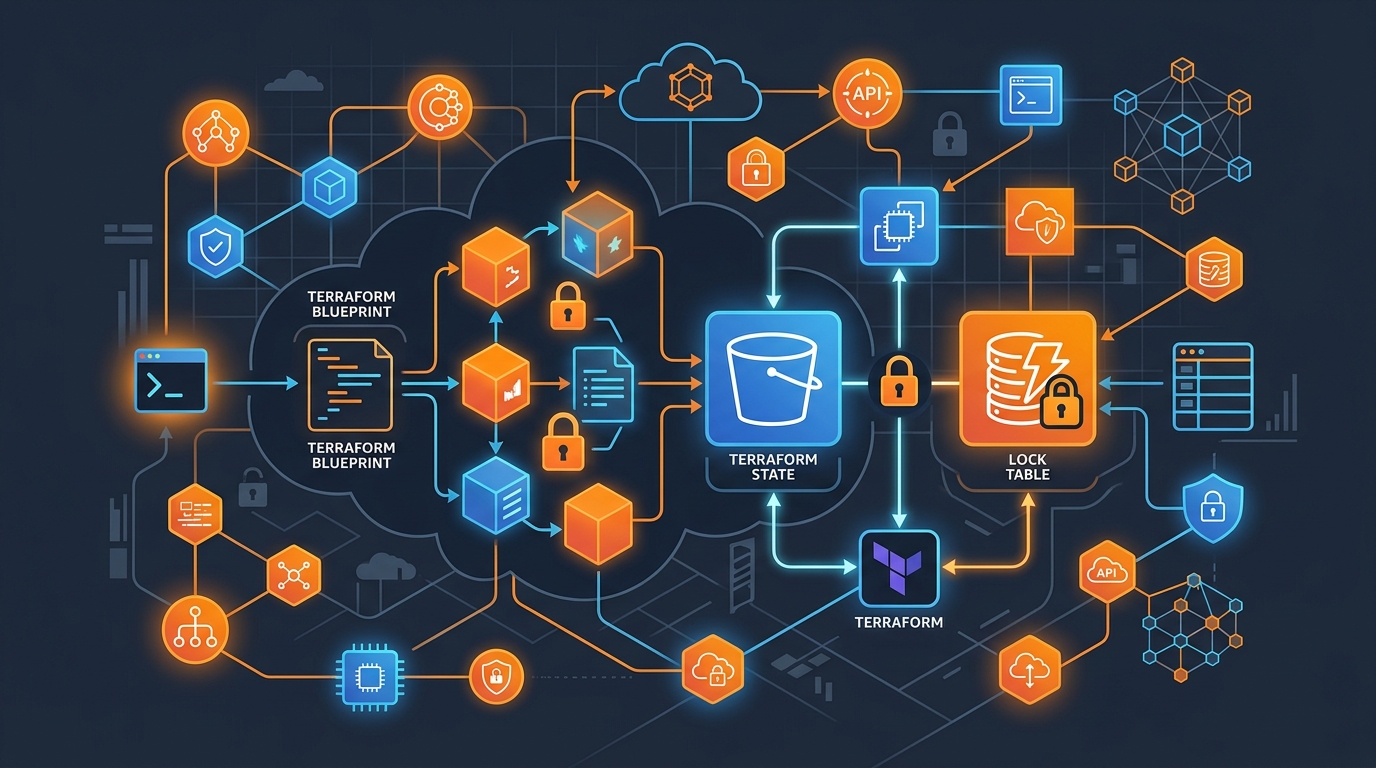
The moment two engineers run terraform apply at the same time without state locking, you have a race condition that can corrupt your entire infrastructure state. Both processes read the current state, both compute a diff, and both write their version back. One of those writes overwrites the other. Resources that existed in the first apply may not exist in the second write. The state file no longer reflects reality, and now you’re troubleshooting infrastructure that Terraform thinks it owns but has no accurate record of.
This is not a theoretical problem. It happens on busy teams, it happens in CI/CD pipelines that run concurrently on feature branches, and it happens at the worst possible time—during an incident, when two people are both trying to fix something fast.
Remote state with locking is the fix. The S3 + DynamoDB backend is the standard AWS implementation, and this guide covers how to set it up properly in 2026, including the newer S3-native locking available since Terraform 1.10.
Why Remote State Is Non-Negotiable for Teams
The default Terraform behavior stores state locally in a terraform.tfstate file. For a solo developer experimenting with personal infrastructure, that’s fine. For any team environment, it’s a problem on multiple levels.
First, there’s the collaboration problem. If state lives on your laptop, no one else can run Terraform without first getting a copy of your state file—and then you have divergent copies. Second, there’s the CI/CD problem. Your pipeline runners are ephemeral. Every job starts fresh. Without remote state, every pipeline run starts blind.
Third, there’s the history problem. Local state has no built-in versioning. When something goes wrong—and it will—you want to be able to look at what the state looked like before the last apply, compare it, and if necessary roll back to it.
Remote state on S3 solves all three: it’s shared, it persists across pipeline runs, and S3 versioning gives you a full history of every state change.
Setting Up the S3 Bucket
The S3 bucket needs a few specific properties to work well as a Terraform backend. Versioning is required. Encryption is required. Public access must be blocked.
resource "aws_s3_bucket" "terraform_state" {
  bucket = "my-company-terraform-state"

  lifecycle {
    prevent_destroy = true
  }
}

resource "aws_s3_bucket_versioning" "terraform_state" {
  bucket = aws_s3_bucket.terraform_state.id

  versioning_configuration {
    status = "Enabled"
  }
}

resource "aws_s3_bucket_server_side_encryption_configuration" "terraform_state" {
  bucket = aws_s3_bucket.terraform_state.id

  rule {
    apply_server_side_encryption_by_default {
      sse_algorithm     = "aws:kms"
      kms_master_key_id = aws_kms_key.terraform_state.arn
    }
    bucket_key_enabled = true
  }
}

resource "aws_s3_bucket_public_access_block" "terraform_state" {
  bucket = aws_s3_bucket.terraform_state.id

  block_public_acls       = true
  block_public_policy     = true
  ignore_public_acls      = true
  restrict_public_buckets = true
}
The prevent_destroy lifecycle rule is worth calling out explicitly. If Terraform ever suggests destroying this bucket—maybe you renamed something, maybe there’s a module restructure—you want that operation to fail loudly, not silently succeed. State loss is difficult to recover from. That one line has saved teams from catastrophic mistakes.
The KMS encryption is covered in more depth in /aws-kms-vs-cloudhsm/, but the short version: SSE-KMS gives you control over the key, auditability through CloudTrail, and the ability to revoke access to state files by disabling the key.
The DynamoDB Table for State Locking
DynamoDB is what provides the actual locking mechanism. Terraform writes a lock record to this table before it starts any operation that reads or modifies state, and removes it when the operation completes.
resource "aws_dynamodb_table" "terraform_locks" {
  name         = "terraform-state-locks"
  billing_mode = "PAY_PER_REQUEST"
  hash_key     = "LockID"

  attribute {
    name = "LockID"
    type = "S"
  }

  tags = {
    Name        = "Terraform State Lock Table"
    Environment = "shared"
    ManagedBy   = "terraform"
  }
}
The table structure is minimal. LockID is the only attribute Terraform needs, and it stores a string that identifies which state file is locked. PAY_PER_REQUEST billing makes sense here because lock operations are infrequent—you’re not querying this table constantly, just during Terraform runs.
Configuring the Backend
With the S3 bucket and DynamoDB table in place, configure the backend in your Terraform code:
terraform {
  backend "s3" {
    bucket         = "my-company-terraform-state"
    key            = "production/vpc/terraform.tfstate"
    region         = "us-east-1"
    encrypt        = true
    kms_key_id     = "arn:aws:kms:us-east-1:123456789012:key/your-key-id"
    dynamodb_table = "terraform-state-locks"
  }
}
The key value is the S3 object path for this specific state file. A good convention is to structure it as <environment>/<component>/terraform.tfstate. This gives you clear organization and lets multiple components share the same backend bucket without colliding.
The encrypt = true flag tells Terraform to explicitly request server-side encryption when writing objects, even if the bucket has a default encryption policy. Belt and suspenders.
State Locking in Action
When Terraform acquires a lock, it writes a JSON record to DynamoDB that looks like this:
{
  "LockID": "my-company-terraform-state/production/vpc/terraform.tfstate",
  "Info": "{\"ID\":\"a3f2b1c4-...\",\"Operation\":\"OperationTypeApply\",\"Who\":\"[email protected]\",\"Version\":\"1.9.5\",\"Created\":\"2026-05-18T14:23:01Z\",\"Path\":\"production/vpc/terraform.tfstate\"}"
}
If a second engineer runs terraform apply while that lock is held, they see:
Error: Error acquiring the state lock

Error message: ConditionalCheckFailedException: The conditional request failed
Lock Info:
  ID:        a3f2b1c4-...
  Path:      production/vpc/terraform.tfstate
  Operation: OperationTypeApply
  Who:       [email protected]
  Version:   1.9.5
  Created:   2026-05-18 14:23:01.432 +0000 UTC
That error message is telling you exactly what you need to know: who holds the lock, what operation they’re running, and when they started. You can either wait for them to finish, or if you know the lock is stale (the process died, the CI job was killed), you can force-unlock it.
Handling Stuck Locks
Locks can get stuck when a Terraform process is killed mid-run—CI timeout, out-of-memory kill, network interruption. The lock record stays in DynamoDB because there was no clean shutdown to remove it.
To force-unlock:
terraform force-unlock LOCK_ID
You get the lock ID from the error message. Terraform will ask for confirmation. This is the right tool when you’ve confirmed the original process is no longer running.
Do not force-unlock if you’re not certain the original process is dead. If it’s still running, you’ve just removed the protection and now two applies are running concurrently—exactly what you were trying to prevent.
For persistent CI problems, it’s worth adding a cleanup step to your pipeline that checks for and removes stale locks older than a reasonable threshold (say, 2 hours). A Lambda on a schedule can do this, or a simple script in a maintenance pipeline.
S3-Native Locking: Terraform 1.10+
Terraform 1.10 and OpenTofu introduced S3-native state locking using S3’s conditional write API. This eliminates the DynamoDB table dependency entirely. Instead of writing a lock record to DynamoDB, Terraform uses S3’s If-None-Match conditional header to perform atomic writes.
The configuration is straightforward:
terraform {
  backend "s3" {
    bucket = "my-company-terraform-state"
    key    = "production/vpc/terraform.tfstate"
    region = "us-east-1"
    encrypt = true

    # S3-native locking - no DynamoDB needed
    use_lockfile = true
  }
}
With use_lockfile = true, Terraform creates a .tflock file in S3 next to your state file and uses S3’s conditional operations to ensure only one process can hold the lock. If S3’s conditional write fails (because another process already wrote the lock file), Terraform treats this as a lock conflict.
This is simpler to operate—one less AWS resource to manage, no DynamoDB costs, and the lock metadata lives right next to the state. The tradeoff is that S3’s lock files have less rich metadata than DynamoDB records, and the force-unlock experience is less polished.
For teams on Terraform 1.10+ or OpenTofu, S3-native locking is a reasonable default for new setups. For teams already running DynamoDB locking, there’s no urgency to migrate—both approaches are valid. The comparison to OpenTofu’s implementation is covered in detail at /terraform-vs-opentofu-2026/.
Cross-Account State Access with IAM Roles
Multi-account AWS setups are standard practice now. You might have a dedicated “infra” account that stores all Terraform state, with separate accounts for staging and production workloads. Terraform needs cross-account access to read and write state.
The pattern is IAM role assumption. In the state-holding account, create a role that grants access to the S3 bucket and DynamoDB table:
resource "aws_iam_role" "terraform_state_access" {
  name = "terraform-state-access"

  assume_role_policy = jsonencode({
    Version = "2012-10-17"
    Statement = [
      {
        Effect = "Allow"
        Principal = {
          AWS = [
            "arn:aws:iam::111111111111:role/terraform-ci",  # staging account
            "arn:aws:iam::222222222222:role/terraform-ci",  # production account
          ]
        }
        Action = "sts:AssumeRole"
      }
    ]
  })
}

resource "aws_iam_role_policy" "terraform_state_access" {
  role = aws_iam_role.terraform_state_access.id

  policy = jsonencode({
    Version = "2012-10-17"
    Statement = [
      {
        Effect = "Allow"
        Action = [
          "s3:GetObject",
          "s3:PutObject",
          "s3:DeleteObject",
          "s3:ListBucket"
        ]
        Resource = [
          aws_s3_bucket.terraform_state.arn,
          "${aws_s3_bucket.terraform_state.arn}/*"
        ]
      },
      {
        Effect = "Allow"
        Action = [
          "dynamodb:GetItem",
          "dynamodb:PutItem",
          "dynamodb:DeleteItem"
        ]
        Resource = aws_dynamodb_table.terraform_locks.arn
      }
    ]
  })
}
In the backend configuration of the account doing the cross-account access:
terraform {
  backend "s3" {
    bucket         = "my-company-terraform-state"
    key            = "staging/app/terraform.tfstate"
    region         = "us-east-1"
    encrypt        = true
    dynamodb_table = "terraform-state-locks"
    role_arn       = "arn:aws:iam::999999999999:role/terraform-state-access"
  }
}
Terraform will assume that role when accessing state. Your CI runner’s IAM role just needs sts:AssumeRole permission for the state access role.
Partial Backend Configuration
Hard-coding bucket names and account IDs in backend blocks creates a problem: the same code can’t be used across environments without modification. Backend blocks don’t support variables (Terraform evaluates them before variable resolution), but they do support partial configuration with -backend-config.
Keep only structural information in the backend block:
terraform {
  backend "s3" {}
}
Then pass the specifics at terraform init time:
terraform init \
  -backend-config="bucket=my-company-terraform-state" \
  -backend-config="key=staging/app/terraform.tfstate" \
  -backend-config="region=us-east-1" \
  -backend-config="dynamodb_table=terraform-state-locks" \
  -backend-config="encrypt=true"
Or use a backend configuration file per environment:
# backends/staging.hcl
bucket         = "my-company-terraform-state"
key            = "staging/app/terraform.tfstate"
region         = "us-east-1"
dynamodb_table = "terraform-state-locks"
encrypt        = true
terraform init -backend-config=backends/staging.hcl
This is the right pattern for CI/CD pipelines where the same Terraform code deploys to multiple environments. Each environment gets its own backend config file, and your pipeline selects the right one based on the branch or target. This integrates cleanly with the GitLab CI setup described at /run-terraform-from-gitlab-ci/.
State File Security: Who Can Read Your State?
This one doesn’t get enough attention. Terraform state files contain sensitive values in plaintext. Every resource attribute that Terraform tracks is in there—including database passwords, API keys, certificate private keys, and anything else you’ve passed to a resource. Even if you use sensitive = true in your variables, those values still end up in state.
Encrypt the bucket with KMS and restrict access tightly:
resource "aws_s3_bucket_policy" "terraform_state" {
  bucket = aws_s3_bucket.terraform_state.id

  policy = jsonencode({
    Version = "2012-10-17"
    Statement = [
      {
        Effect    = "Deny"
        Principal = "*"
        Action    = "s3:*"
        Resource = [
          aws_s3_bucket.terraform_state.arn,
          "${aws_s3_bucket.terraform_state.arn}/*"
        ]
        Condition = {
          Bool = {
            "aws:SecureTransport" = "false"
          }
        }
      },
      {
        Effect    = "Deny"
        Principal = "*"
        Action    = "s3:*"
        Resource = [
          aws_s3_bucket.terraform_state.arn,
          "${aws_s3_bucket.terraform_state.arn}/*"
        ]
        Condition = {
          StringNotEquals = {
            "aws:PrincipalArn" = [
              "arn:aws:iam::123456789012:role/terraform-ci",
              "arn:aws:iam::123456789012:role/terraform-state-access",
              "arn:aws:iam::123456789012:root"
            ]
          }
        }
      }
    ]
  })
}
The first statement blocks non-HTTPS access. The second restricts bucket access to a specific allowlist of IAM principals. Anyone not on that list gets an explicit deny, regardless of what their identity policy says.
Enable CloudTrail on the bucket to log every read and write. State access should be auditable—you want to know if someone read the state file outside of a normal Terraform run.
The Bootstrapping Problem
Here’s the catch: you need an S3 bucket and DynamoDB table before you can use them as a Terraform backend. But if you’re managing your infrastructure with Terraform, you want to create those resources with Terraform. You can’t store the state for the resources that store your state.
There are three practical approaches.
The first is to create the bootstrap resources manually (via the AWS Console or CLI) and then import them into a dedicated “bootstrap” Terraform workspace that stores its own state locally. This workspace is the one exception to the “no local state” rule—it’s small, rarely changed, and explicitly documented as special.
aws s3api create-bucket --bucket my-company-terraform-state --region us-east-1
aws dynamodb create-table \
  --table-name terraform-state-locks \
  --attribute-definitions AttributeName=LockID,AttributeType=S \
  --key-schema AttributeName=LockID,KeyType=HASH \
  --billing-mode PAY_PER_REQUEST
Then write Terraform code for those resources, initialize with a local backend, and import:
terraform import aws_s3_bucket.terraform_state my-company-terraform-state
terraform import aws_dynamodb_table.terraform_locks terraform-state-locks
The second approach is Terragrunt’s generate block, which can create the bootstrap resources before Terraform initializes. If you’re already using Terragrunt, this is clean.
The third is to accept the bootstrap resources as “cattle not pets” and manage them with a simple script or CloudFormation stack rather than Terraform. The tradeoff is a small amount of infrastructure that isn’t tracked by Terraform, but the upside is there’s no circular dependency to reason about.
Workspaces vs Separate State Files
Terraform workspaces let you maintain multiple state files for the same configuration, selecting between them with terraform workspace select. At first glance, this seems like the right tool for managing multiple environments.
In practice, workspaces have problems. The workspace name bleeds into your resource names only if you reference terraform.workspace explicitly—which means it’s easy to accidentally share resources across workspaces. There’s no access control at the workspace level; if you can access the backend, you can access all workspaces. And workspaces stored in the same S3 key prefix can be confusing to navigate.
The more robust pattern for environments is separate state files with separate backend keys, as shown throughout this guide. Each environment has its own key path, its own backend config file, and optionally its own S3 bucket entirely (useful when environment isolation at the IAM level matters). This is the approach described in /terraform-modules/ for module reuse across environments, and it composes well with the /terraform-for-each/ pattern for provisioning parallel environments.
Workspaces make sense for genuinely ephemeral environments—pull request preview deployments, short-lived test stacks. For long-lived environments like staging and production, separate state files are clearer.
Common Issues and Recovery
Lock stuck after CI timeout: The most common scenario. Your pipeline hit a timeout limit, the job was killed, and the DynamoDB lock record was never cleaned up. Verify the original process is gone, then terraform force-unlock LOCK_ID. Consider adding a pipeline step that runs terraform force-unlock on cleanup/cancellation hooks.
State corruption after concurrent applies: If two applies ran simultaneously without locking, your state file may no longer reflect reality. Start by running terraform plan and reading it carefully—it will show drift between state and actual resources. For serious corruption, retrieve a previous version from S3 versioning:
aws s3api list-object-versions \
  --bucket my-company-terraform-state \
  --prefix production/app/terraform.tfstate

aws s3api get-object \
  --bucket my-company-terraform-state \
  --key production/app/terraform.tfstate \
  --version-id VERSION_ID \
  terraform.tfstate.backup
Restore carefully. If you restore an old state that doesn’t match current AWS reality, terraform plan will show a large diff. Work through it systematically—terraform state rm for resources Terraform shouldn’t manage, terraform import for resources that exist in AWS but not in state.
Access denied on DynamoDB during lock: Usually an IAM issue. The role running Terraform needs dynamodb:GetItem, dynamodb:PutItem, and dynamodb:DeleteItem. A common mistake is granting S3 permissions but forgetting DynamoDB.
Backend config drift: If team members have different backend config files locally and one runs terraform init with the wrong config, Terraform may reconfigure the backend and copy state somewhere unexpected. Keep backend config files in the repository and make terraform init -backend-config=<file> the documented standard. In CI/CD, the pipeline should always specify the backend config explicitly—never rely on cached .terraform directories.
State management isn’t the exciting part of Terraform, but it’s the part that determines whether you can trust your infrastructure as code. Get the locking right, get the encryption right, get the IAM right—and then it just works in the background while you focus on the actual infrastructure. The /terraform-modules/ guide covers how to structure the code that uses this backend.
| *Related: Terraform for_each | Terraform Modules | Run Terraform from GitLab CI | Terraform vs OpenTofu 2026* |
Explore more like this

GitLab CI Environments and Review Apps in 2026
Review apps changed how my team does code review. Instead of reading diffs, reviewers click a link and see the actual change running. The designer can verify spacing on the...

Crossplane vs Terraform in 2026: Which IaC Approach Wins?
I’ve been running Crossplane alongside Terraform for six months. Here’s my honest take on where each one shines.
Scrum + Team Topologies: Why Your DevOps Team Structure Might Be Slowing You Down
I spent three years at a company that spent $4 million on “DevOps transformation.” New tools, new cloud infrastructure, training budgets, the works. The velocity of the platform stayed flat....

Comments