
AWS Fault Injection Simulator: Chaos Engineering for Production Resilience

Production systems fail. Not “if” but “when.” Your database primary crashes at 3 AM, an Availability Zone goes dark right in the middle of peak traffic, or a misconfigured IAM policy quietly revokes permissions across your entire fleet. The real question isn’t whether these things will happen to your AWS workloads – it’s whether your systems can handle them without falling apart.
That’s where Chaos Engineering comes in. It’s the practice of deliberately stressing your system in controlled ways so you can build real confidence that it’ll hold up when things go sideways. And if you’re running on AWS, the AWS Fault Injection Simulator (FIS) is hands-down the best way to do it – native integration, built-in safety nets, and no need to bolt on third-party agents.
We’re going to walk you through the whole process, from zero to running real chaos experiments in production. That includes setting up experiment templates, automating with CloudFormation, targeting EKS, ECS, and RDS workloads, wiring up monitoring through CloudWatch and EventBridge, crunching the cost numbers, and stacking FIS up against alternatives like Gremlin, Chaos Mesh, and Litmus.
Table of Contents
- What is Chaos Engineering and Why It Matters
- AWS FIS Overview
- Experiment Types in FIS
- Your First Experiment: Step-by-Step
- Advanced Templates with CloudFormation
- FIS with Amazon EKS
- FIS with Amazon RDS
- FIS with Amazon ECS
- CloudWatch and EventBridge Integration
- Building a Chaos Engineering Culture
- Cost Analysis
- FIS vs Gremlin vs Chaos Mesh vs Litmus
- Best Practices
- Conclusion
What is Chaos Engineering and Why It Matters
The whole idea started back in 2011 when Netflix built Chaos Monkey – a tool that would randomly kill production instances just to see what happened. It sounds reckless, but it caught on. Since then, chaos engineering has grown into a proper discipline with four core principles:
- Define steady-state behavior – figure out what “normal” looks like with measurable baselines.
- Form a hypothesis – bet that things will keep running fine even when something goes wrong.
- Inject failures – deliberately break things in a controlled, reversible way.
- Observe and learn – see what actually happened versus what you expected, then fix the gaps.
Why Chaos Engineering Matters on AWS
AWS gives you a lot to work with – multiple Availability Zones, auto-scaling groups, managed databases with failover, and plenty of other resilience features. But getting all of that configured correctly? That’s on you. A misconfigured health check, an auto-scaling group that’s missing proper termination policies, or a database with a broken failover path – these problems sit quietly in the dark until a real failure drags them into the light.
When you set up high availability in AWS, you’re spreading things across Availability Zones, putting load balancers in front of everything, and configuring multi-AZ databases. Chaos Engineering is what tells you whether those safeguards actually hold up under pressure – not just on your architecture diagrams, but in the real, live environment.
The key benefits are straightforward:
| Benefit | Description |
|---|---|
| Failure detection | Uncover hidden weaknesses before real incidents expose them |
| Confidence building | Prove that redundancy and failover mechanisms actually work |
| Runbook validation | Verify incident response procedures under realistic conditions |
| Team preparedness | Train on-call engineers through controlled failure scenarios |
| Architecture improvement | Use evidence to drive resilience investments |
Teams that regularly practice chaos engineering tend to recover from incidents a lot faster and deal with far fewer customer-facing outages. Honestly, the effort pays for itself the very first time a real production failure gets handled smoothly because your on-call team has already been through that exact scenario.
AWS FIS Overview
AWS Fault Injection Simulator is a fully managed service designed to let you run fault injection experiments right on your AWS workloads. It launched back in 2021 and has steadily expanded to cover a wide range of services – EC2, ECS, EKS, RDS, IAM, and networking, to name the big ones.
Core Concepts
FIS is built around three primary concepts:
| Concept | Description |
|---|---|
| Experiment Template | A JSON document that defines the actions, targets, stop conditions, and role to use for an experiment |
| Experiment | A running instance of a template – the actual fault injection execution |
| Action | A specific fault to inject, such as terminating an instance or stressing CPU |
Key Features
- Managed service: No agents to install, no infrastructure to maintain. FIS operates within your AWS account using IAM roles you control.
- Built-in safety mechanisms: Stop conditions, automatic rollback, and resource targeting ensure experiments stay within defined boundaries.
- AWS-native integration: Direct support for EC2, ECS, EKS, RDS, Lambda, DynamoDB, and more. No bolt-on adapters required.
- Auditability: Every experiment is logged, with full details available via API, CLI, and Console.
- CloudWatch and EventBridge integration: Monitor experiments in real time and trigger automated responses.
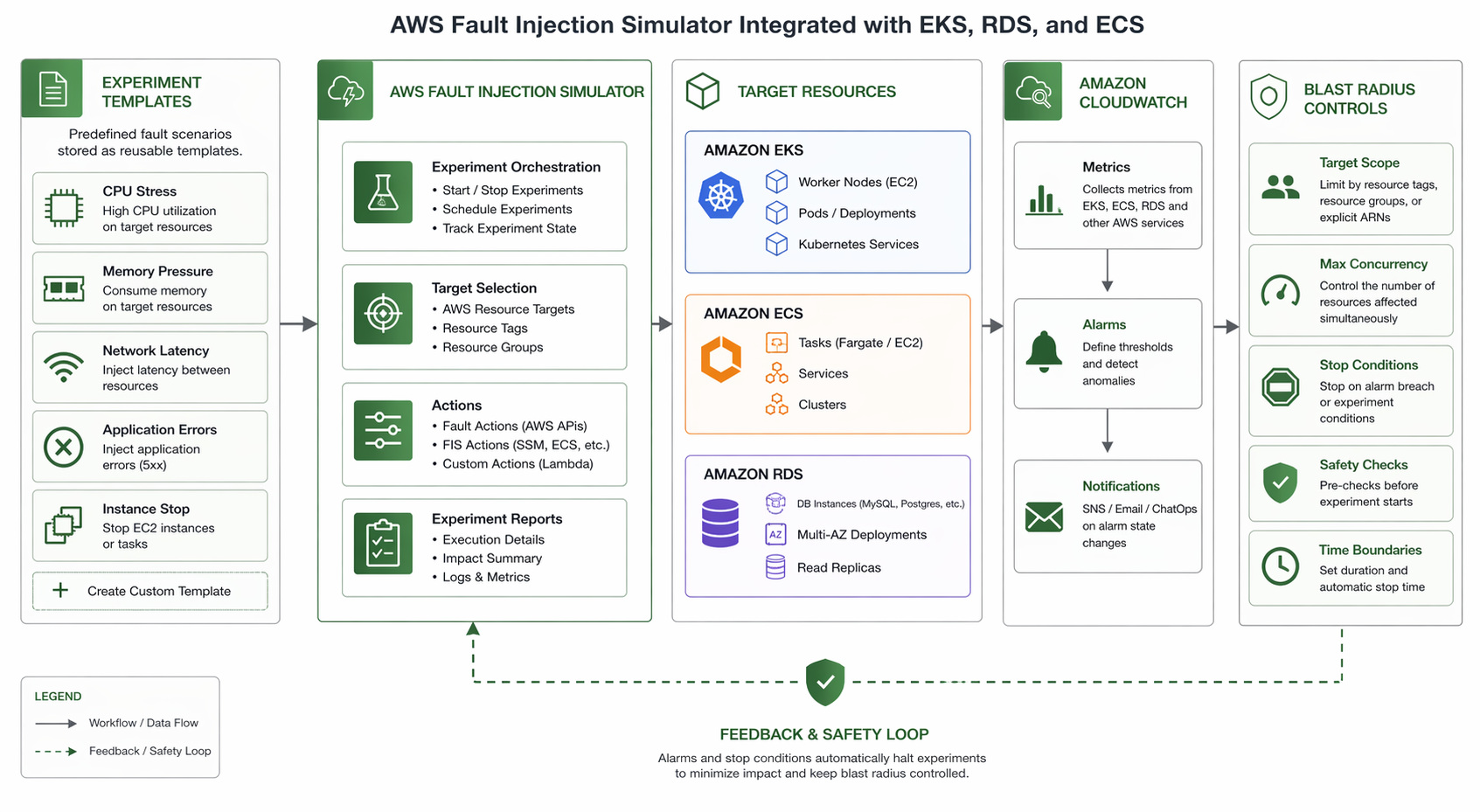
How FIS Works
The workflow follows a clear path:
- You create an experiment template that specifies what to disrupt, where, and for how long.
- You start an experiment from that template (manually, via CLI, or triggered by EventBridge).
- FIS executes the defined actions against the specified targets.
- Stop conditions monitor CloudWatch alarms and halt the experiment if thresholds are breached.
- You observe system behavior through your existing monitoring stack (CloudWatch, X-Ray, third-party tools).
- After the experiment completes, you analyze results and improve your architecture.
IAM Permissions Required
FIS needs an IAM role to do its job – basically, it needs permission to actually perform the disruptive actions against your resources. Keep it locked down with least privilege: the role should only cover the specific actions you’ve defined in your experiment templates.
{
  "Version": "2012-10-17",
  "Statement": [
    {
      "Effect": "Allow",
      "Principal": {
        "Service": "fis.amazonaws.com"
      },
      "Action": "sts:AssumeRole"
    }
  ]
}
The corresponding policy depends on your experiment types. For EC2-only experiments:
{
  "Version": "2012-10-17",
  "Statement": [
    {
      "Sid": "AllowFISReadOperations",
      "Effect": "Allow",
      "Action": [
        "ec2:DescribeInstances",
        "ec2:DescribeInstanceStatus"
      ],
      "Resource": "*"
    },
    {
      "Sid": "AllowFISInjectFaults",
      "Effect": "Allow",
      "Action": [
        "ec2:RebootInstances",
        "ec2:StopInstances",
        "ec2:TerminateInstances"
      ],
      "Resource": "arn:aws:ec2:*:*:instance/*",
      "Condition": {
        "StringEquals": {
          "aws:ResourceTag/FIS-Target": "true"
        }
      }
    }
  ]
}
Take note of that condition key – it restricts FIS to only touching instances tagged with FIS-Target=true. This is one of the most important safety mechanisms in FIS, and it’s what keeps your experiment from accidentally wreaking havoc on resources that weren’t supposed to be part of it.
Experiment Types in FIS
FIS ships with a growing library of built-in actions, organized by the AWS service they target. Here’s a rundown of the main experiment types you can work with.
| Category | Action | Target Service | What It Does |
|---|---|---|---|
| Compute | aws:ec2:terminate-instances |
EC2 | Terminates targeted EC2 instances |
| Compute | aws:ec2:stop-instances |
EC2 | Stops targeted instances (can be restarted) |
| Compute | aws:ec2:reboot-instances |
EC2 | Reboots targeted instances |
| Compute | aws:ec2:cpu-stress |
EC2 | Simulates CPU pressure via SSM |
| Compute | aws:ec2:memory-stress |
EC2 | Simulates memory pressure via SSM |
| Compute | aws:ec2:io-stress |
EC2 | Simulates disk I/O pressure via SSM |
| Compute | aws:ec2:network-acl |
EC2/VPC | Modifies NACL rules to block traffic |
| Network | aws:network:blackhole-route |
VPC | Drops traffic for specified routes |
| Network | aws:network:delay |
VPC | Injects network latency |
| Network | aws:network:packet-loss |
VPC | Drops a percentage of network packets |
| IAM | aws:iam:revok-role-policy |
IAM | Revokes a policy from a role |
| ASG | aws:ec2:asg-terminate-instances |
Auto Scaling | Terminates instances within an ASG |
| ASG | aws:ec2:asg-suspend-processes |
Auto Scaling | Suspends ASG processes (launch, terminate, etc.) |
| RDS | aws:rds:failover-db-cluster |
RDS (Aurora) | Forces a cluster failover |
| RDS | aws:rds:reboot-db-instances |
RDS | Reboots a DB instance |
| ECS | aws:ecs:drain-container-instances |
ECS | Drains tasks from container instances |
| ECS | aws:ecs:stop-task |
ECS | Stops running ECS tasks |
| EKS | aws:eks:terminate-pods |
EKS | Terminates pods in an EKS cluster |
| EKS | aws:eks:stress-cpu |
EKS | Stresses CPU on targeted pods via FIS agent |
| Lambda | aws:lambda:invoke-function |
Lambda | Invokes a Lambda function (for custom faults) |
| DynamoDB | aws:dynamodb:inject-api-error |
DynamoDB | Injects API errors for DynamoDB tables |
| DynamoDB | aws:dynamodb:throttle-table |
DynamoDB | Throttles read/write operations |
Network Disruption Parameters
Network disruption experiments give you fine-grained control over how traffic is affected. Here are the key parameters:
| Parameter | Description | Valid Values |
|---|---|---|
Duration |
How long the disruption lasts | ISO 8601 duration (e.g., PT5M) |
NetworkInterface |
Which NIC to disrupt | eth0, eth1, or primary |
LossPercent |
Percentage of packets to drop | 0 - 100 |
DelayMilliseconds |
One-way latency added per packet | 0 - 60000 |
DestinationAddresses |
CIDR blocks to filter traffic | e.g., 10.0.0.0/16 |
SourcePorts |
Source port range to affect | e.g., 80,443 |
DestinationPorts |
Destination port range | e.g., 3306,5432 |
Target Selection Methods
When defining an experiment, you must specify which resources to target. FIS supports multiple targeting methods:
| Method | Description | Example |
|---|---|---|
ResourceTags |
Select resources by tag key-value pairs | Environment: production, FIS-Target: true |
ResourceIds |
Target specific resource IDs | i-0abc123def456 |
ResourceType |
Target all resources of a given type | aws:ec2:instance |
Filters |
Apply additional filters on selected targets | Availability Zone, instance type |
Parameters |
Use percentage-based selection | 10% of matching instances |
The percentage-based targeting is especially handy. You could, for instance, say “hit 10% of the instances tagged Environment=production” – that keeps the blast radius manageable while still giving you a meaningful test against real production traffic.
Your First Experiment: Step-by-Step
Let’s walk through building and running your first FIS experiment. We’ll stress the CPU on a single EC2 instance for 60 seconds – simple enough to get your feet wet, but it still does the important job of validating your monitoring and alerting pipeline.
Prerequisites
- An AWS account with FIS available in your chosen region
- At least one running EC2 instance (with SSM Agent installed for CPU stress)
- An IAM role for FIS with appropriate permissions
- The AWS CLI configured with appropriate credentials
Step 1: Tag Your Target Instance
Tag the EC2 instance you want to target so FIS can find it:
aws ec2 create-tags \
  --resources i-0abc123def4567890 \
  --tags Key=FIS-Target,Value=true Key=Environment,Value=staging
Step 2: Create the IAM Role for FIS
Create the trust policy file (fis-trust-policy.json):
{
  "Version": "2012-10-17",
  "Statement": [
    {
      "Effect": "Allow",
      "Principal": {
        "Service": "fis.amazonaws.com"
      },
      "Action": "sts:AssumeRole",
      "Condition": {
        "StringEquals": {
          "sts:ExternalId": "my-fis-experiments"
        }
      }
    }
  ]
}
Create the role and attach the necessary policy:
# Create the IAM role
aws iam create-role \
  --role-name FISExperimentRole \
  --assume-role-policy-document file://fis-trust-policy.json

# Attach a policy for EC2 and SSM actions
aws iam put-role-policy \
  --role-name FISExperimentRole \
  --policy-name FISExperimentPolicy \
  --policy-document file://fis-permissions-policy.json
The permissions policy (fis-permissions-policy.json) should grant:
{
  "Version": "2012-10-17",
  "Statement": [
    {
      "Sid": "SSMPermissions",
      "Effect": "Allow",
      "Action": [
        "ssm:SendCommand",
        "ssm:ListCommandInvocations"
      ],
      "Resource": "*"
    },
    {
      "Sid": "EC2Read",
      "Effect": "Allow",
      "Action": [
        "ec2:DescribeInstances"
      ],
      "Resource": "*"
    },
    {
      "Sid": "CloudWatchForStopConditions",
      "Effect": "Allow",
      "Action": [
        "cloudwatch:DescribeAlarms"
      ],
      "Resource": "*"
    }
  ]
}
Step 3: Create the Experiment Template
Now create the experiment template using the AWS CLI:
aws fis create-experiment-template \
  --cli-input-json '{
    "description": "CPU stress test on staging instances - 60 seconds",
    "targets": {
      "StagingInstances": {
        "resourceType": "aws:ec2:instance",
        "selectionMode": "COUNT(1)",
        "parameters": {
          "availabilityZoneIdentifier": "us-east-1a"
        },
        "resourceTags": {
          "FIS-Target": "true",
          "Environment": "staging"
        }
      }
    },
    "actions": {
      "stressCpu": {
        "actionTypeId": "aws:ec2:cpu-stress",
        "description": "Apply CPU stress to 100% for 60 seconds",
        "parameters": {
          "Duration": "PT60S",
          "CPU": "100"
        },
        "targets": {
          "Instances": "StagingInstances"
        }
      }
    },
    "stopConditions": [
      {
        "source": "aws:cloudwatch:alarm",
        "value": "arn:aws:cloudwatch:us-east-1:123456789012:alarm:HighCPUAlarm"
      }
    ],
    "roleArn": "arn:aws:iam::123456789012:role/FISExperimentRole",
    "tags": {
      "Purpose": "ChaosEngineering",
      "Team": "Platform"
    }
  }'
This template:
- Targets instances tagged with
FIS-Target=trueandEnvironment=staging - Selects exactly one instance (
COUNT(1)) - Stresses CPU at 100% for 60 seconds
- Stops automatically if the CloudWatch alarm
HighCPUAlarmtriggers
Step 4: Start the Experiment
# Replace with the template ID returned from the previous command
aws fis start-experiment \
  --experiment-template-id EXT-ABC123DEF456 \
  --client-token "$(uuidgen)"
Step 5: Monitor the Experiment
# Check the experiment status
aws fis get-experiment \
  --id EXP-XYZ789ABC012

# List all actions and their states
aws fis list-experiment-actions \
  --experiment-id EXP-XYZ789ABC012
The experiment progresses through these states:
| State | Meaning |
|---|---|
PENDING |
Experiment is initializing |
RUNNING |
Fault injection is active |
COMPLETED |
Experiment finished normally |
STOPPING |
Stop condition triggered or manual stop |
STOPPED |
Experiment was halted |
FAILED |
An error prevented execution |
You can also keep an eye on things in the AWS Console – head to AWS Fault Injection Simulator > Experiments and you’ll get real-time status, action progress, and details on which resources are being targeted.
Step 6: Review Results
After the experiment completes, review the results:
# Get the full experiment details
aws fis get-experiment --id EXP-XYZ789ABC012 --output json

# Check CloudWatch metrics during the experiment window
aws cloudwatch get-metric-statistics \
  --namespace AWS/EC2 \
  --metric-name CPUUtilization \
  --dimensions Name=InstanceId,Value=i-0abc123def4567890 \
  --start-time 2026-04-22T10:00:00Z \
  --end-time 2026-04-22T10:05:00Z \
  --period 60 \
  --statistics Average \
  --output table
Once that’s done, check whether your monitoring actually caught the CPU spike and whether auto-scaling or alerting kicked in the way it should have. What you’re really validating here isn’t just the app’s resilience – it’s your entire observability pipeline from end to end.
Advanced Templates with CloudFormation
If your team manages infrastructure as code (and honestly, you should), you can define and version FIS experiment templates right in CloudFormation. That means your chaos experiments stay repeatable, auditable, and deployed in lockstep with the rest of your infrastructure.
Here’s a complete CloudFormation template that spins up an FIS experiment template and the IAM role it needs:
AWSTemplateFormatVersion: '2010-09-09'
Description: 'FIS Experiment: EC2 CPU Stress Test for Staging'

Parameters:
  Environment:
    Type: String
    Default: staging
    AllowedValues:
      - staging
      - production

  StressDuration:
    Type: String
    Default: 'PT120S'
    Description: 'ISO 8601 duration for CPU stress'

  CpuPercentage:
    Type: Number
    Default: 80
    MinValue: 1
    MaxValue: 100
    Description: 'CPU stress percentage'

  TargetCount:
    Type: Number
    Default: 1
    Description: 'Number of instances to target'

Resources:
  FISExecutionRole:
    Type: AWS::IAM::Role
    Properties:
      RoleName: !Sub 'FIS-ExperimentRole-${Environment}'
      AssumeRolePolicyDocument:
        Version: '2012-10-17'
        Statement:
          - Effect: Allow
            Principal:
              Service: fis.amazonaws.com
            Action: 'sts:AssumeRole'
            Condition:
              StringEquals:
                sts:ExternalId: !Sub 'fis-${Environment}'
      ManagedPolicyArns:
        - !Sub 'arn:${AWS::Partition}:iam::aws:policy/AmazonEC2ReadOnlyAccess'
        - !Sub 'arn:${AWS::Partition}:iam::aws:policy/CloudWatchReadOnlyAccess'
      Policies:
        - PolicyName: FISSSMActions
          PolicyDocument:
            Version: '2012-10-17'
            Statement:
              - Effect: Allow
                Action:
                  - 'ssm:SendCommand'
                  - 'ssm:ListCommandInvocations'
                  - 'ssm:GetCommandInvocation'
                Resource: '*'
              - Effect: Allow
                Action:
                  - 'ec2:RebootInstances'
                  - 'ec2:StopInstances'
                  - 'ec2:TerminateInstances'
                Resource: !Sub 'arn:${AWS::Partition}:ec2:*:*:instance/*'
                Condition:
                  StringEquals:
                    'aws:ResourceTag/FIS-Target': 'true'

  CPUStressExperimentTemplate:
    Type: AWS::FIS::ExperimentTemplate
    Properties:
      Description: !Sub >
        CPU stress test targeting ${TargetCount} instance(s)
        in ${Environment} at ${CpuPercentage}% for ${StressDuration}
      Targets:
        TargetInstances:
          resourceType: 'aws:ec2:instance'
          selectionMode: !Sub 'COUNT(${TargetCount})'
          resourceTags:
            FIS-Target: 'true'
            Environment: !Ref Environment
      Actions:
        stressCpu:
          actionTypeId: 'aws:ec2:cpu-stress'
          description: !Sub 'Stress CPU at ${CpuPercentage}%'
          parameters:
            Duration: !Ref StressDuration
            CPU: !Ref CpuPercentage
          targets:
            Instances: TargetInstances
      StopConditions:
        - source: 'none'
      RoleArn: !GetAtt FISExecutionRole.Arn
      Tags:
        Purpose: ChaosEngineering
        Environment: !Ref Environment
        ManagedBy: CloudFormation

Outputs:
  ExperimentTemplateId:
    Description: 'FIS Experiment Template ID'
    Value: !Ref CPUStressExperimentTemplate

  ExecutionRoleArn:
    Description: 'IAM Role ARN for FIS experiments'
    Value: !GetAtt FISExecutionRole.Arn
Deploy this template with:
aws cloudformation deploy \
  --template-file fis-cpu-stress.yaml \
  --stack-name fis-cpu-stress-staging \
  --parameter-overrides Environment=staging StressDuration=PT120S CpuPercentage=80 \
  --capabilities CAPABILITY_NAMED_IAM
The big win here is that your chaos experiments live alongside your infrastructure code. They get version-controlled, go through your standard change management review, and deploy consistently across environments – no more one-off experiments that nobody can reproduce.
Multi-Action Experiment Template
In practice, real outages rarely come one at a time. Here’s an example that throws CPU stress and network latency at your instances together, simulating a much messier failure scenario:
{
  "description": "Combined CPU stress and network latency - staging validation",
  "targets": {
    "WebInstances": {
      "resourceType": "aws:ec2:instance",
      "selectionMode": "PERCENT(25)",
      "resourceTags": {
        "Role": "web-server",
        "Environment": "staging"
      }
    }
  },
  "actions": {
    "stressCpu": {
      "actionTypeId": "aws:ec2:cpu-stress",
      "parameters": {
        "Duration": "PT180S",
        "CPU": "70"
      },
      "targets": {
        "Instances": "WebInstances"
      },
      "startAfter": []
    },
    "injectLatency": {
      "actionTypeId": "aws:network:delay",
      "parameters": {
        "Duration": "PT180S",
        "DelayMilliseconds": "200",
        "NetworkInterface": "primary"
      },
      "targets": {
        "Instances": "WebInstances"
      },
      "startAfter": ["stressCpu"]
    }
  },
  "stopConditions": [
    {
      "source": "aws:cloudwatch:alarm",
      "value": "arn:aws:cloudwatch:us-east-1:123456789012:alarm:CriticalErrorRate"
    }
  ],
  "roleArn": "arn:aws:iam::123456789012:role/FISExperimentRole"
}
Notice the startAfter field – that’s what controls the sequencing. In this case, the network latency kicks in after the CPU stress is already running, which simulates a cascading failure that’s a lot more realistic than hitting everything at once.
FIS with Amazon EKS
Kubernetes workloads on EKS come with their own unique failure modes. Pods get evicted, nodes drop off the network, and network policies can accidentally block traffic between services. FIS has native EKS actions that let you target things at the pod level.
Prerequisites for EKS Experiments
Before running FIS experiments against EKS, you need:
- The FIS agent installed as a DaemonSet on your cluster
- An IAM role that grants FIS permission to interact with your EKS cluster
- Proper Kubernetes RBAC permissions for the FIS service account
Install the FIS agent on your EKS cluster:
# Add the FIS Helm repository
helm repo add fis https://eks-fis-agent-helm.s3.amazonaws.com

# Install the FIS agent
helm install fis-agent fis/fis-agent \
  --namespace fis-system \
  --create-namespace \
  --set clusterName=my-production-cluster \
  --set serviceAccount.annotations."eks\.amazonaws\.com/role-arn"=arn:aws:iam::123456789012:role/FISAgentRole
EKS Pod Termination Experiment
This experiment randomly terminates pods in a specific Kubernetes namespace to validate that your application handles pod churn gracefully:
{
  "description": "Terminate pods in the payment-service namespace",
  "targets": {
    "PaymentPods": {
      "resourceType": "aws:eks:pod",
      "resourceTags": {},
      "parameters": {
        "ClusterIdentifier": "my-production-cluster",
        "Namespace": "payment-service",
        "Selector": "app=payment-api"
      },
      "selectionMode": "PERCENT(30)"
    }
  },
  "actions": {
    "terminatePods": {
      "actionTypeId": "aws:eks:terminate-pods",
      "description": "Terminate 30% of payment-api pods",
      "parameters": {},
      "targets": {
        "Pods": "PaymentPods"
      }
    }
  },
  "stopConditions": [
    {
      "source": "aws:cloudwatch:alarm",
      "value": "arn:aws:cloudwatch:us-east-1:123456789012:alarm:PaymentServiceErrorRate"
    }
  ],
  "roleArn": "arn:aws:iam::123456789012:role/FISExperimentRole"
}
EKS CPU Stress on Pods
For testing how your application performs under resource pressure:
aws fis create-experiment-template \
  --cli-input-json '{
    "description": "CPU stress on checkout pods - validate HPA behavior",
    "targets": {
      "CheckoutPods": {
        "resourceType": "aws:eks:pod",
        "parameters": {
          "ClusterIdentifier": "my-production-cluster",
          "Namespace": "checkout",
          "Selector": "app=checkout-service"
        },
        "selectionMode": "COUNT(2)"
      }
    },
    "actions": {
      "stressPodCpu": {
        "actionTypeId": "aws:eks:stress-cpu",
        "parameters": {
          "Duration": "PT300S",
          "CPU": "90"
        },
        "targets": {
          "Pods": "CheckoutPods"
        }
      }
    },
    "stopConditions": [
      {
        "source": "aws:cloudwatch:alarm",
        "value": "arn:aws:cloudwatch:us-east-1:123456789012:alarm:CheckoutHighLatency"
      }
    ],
    "roleArn": "arn:aws:iam::123456789012:role/FISExperimentRole"
  }'
This one’s especially handy for making sure your Horizontal Pod Autoscaler (HPA) actually kicks in and scales up when pods are getting hammered with CPU load.
IAM Policy for EKS FIS Experiments
{
  "Version": "2012-10-17",
  "Statement": [
    {
      "Sid": "EKSPermissions",
      "Effect": "Allow",
      "Action": [
        "eks:DescribeCluster",
        "eks:ListClusters"
      ],
      "Resource": "*"
    },
    {
      "Sid": "EKSFISAgent",
      "Effect": "Allow",
      "Action": [
        "ssm:SendCommand",
        "ssm:GetCommandInvocation"
      ],
      "Resource": "*"
    },
    {
      "Sid": "EC2ForEKS",
      "Effect": "Allow",
      "Action": [
        "ec2:DescribeInstances",
        "ec2:DescribeInstanceStatus"
      ],
      "Resource": "*"
    }
  ]
}
FIS with Amazon RDS
Database failover is one of those resilience tests you really can’t skip. When your primary database goes down, does your application actually reconnect to the new primary fast enough? Can your connection pools handle the topology change? Do read replicas get promoted the way they’re supposed to?
FIS supports RDS experiments for both Aurora clusters and standard RDS instances. Since AWS Backup strategies and database resilience are two sides of the same coin, testing failover is pretty much essential.
Aurora Cluster Failover
Force a failover on an Aurora cluster to test your application’s reconnection logic:
aws fis create-experiment-template \
  --cli-input-json '{
    "description": "Force Aurora cluster failover - validate application recovery",
    "targets": {
      "AuroraCluster": {
        "resourceType": "aws:rds:cluster",
        "resourceTags": {
          "FIS-Target": "true",
          "Environment": "staging"
        },
        "selectionMode": "ALL"
      }
    },
    "actions": {
      "failoverCluster": {
        "actionTypeId": "aws:rds:failover-db-cluster",
        "description": "Force failover to a different Aurora replica",
        "parameters": {},
        "targets": {
          "Clusters": "AuroraCluster"
        }
      }
    },
    "stopConditions": [
      {
        "source": "aws:cloudwatch:alarm",
        "value": "arn:aws:cloudwatch:us-east-1:123456789012:alarm:DatabaseConnectionFailures"
      }
    ],
    "roleArn": "arn:aws:iam::123456789012:role/FISExperimentRole"
  }'
RDS Instance Reboot
For single-instance RDS databases (non-Aurora), you can simulate a database restart:
{
  "description": "Reboot RDS instance to test connection resilience",
  "targets": {
    "DatabaseInstance": {
      "resourceType": "aws:rds:instance",
      "resourceIds": ["my-db-instance"],
      "selectionMode": "ALL"
    }
  },
  "actions": {
    "rebootDatabase": {
      "actionTypeId": "aws:rds:reboot-db-instances",
      "description": "Reboot the primary database instance",
      "parameters": {
        "forceFailover": "true"
      },
      "targets": {
        "DBInstances": "DatabaseInstance"
      }
    }
  },
  "stopConditions": [
    {
      "source": "none"
    }
  ],
  "roleArn": "arn:aws:iam::123456789012:role/FISExperimentRole"
}
What to Measure During RDS Failover
When running database failover experiments, monitor these metrics:
| Metric | CloudWatch Namespace | Expected Behavior |
|---|---|---|
| Database connections | AWS/RDS - DatabaseConnections |
Drops to zero, then recovers |
| Failover time | AWS/RDS - FailoverTime |
Typically under 30 seconds for Aurora |
| Application error rate | Custom metric | Brief spike, then recovery |
| Application latency | Custom metric | Increase during failover, then normalization |
| DNS resolution time | Custom metric | Must resolve new writer endpoint |
FIS with Amazon ECS
With ECS, there are two main fault injection scenarios you’ll want to test: draining container instances and outright stopping running tasks. Both help you verify that your ECS services can reschedule tasks properly and that your load balancer health checks pull unhealthy targets out of rotation quickly enough.
Drain ECS Container Instances
aws fis create-experiment-template \
  --cli-input-json '{
    "description": "Drain ECS container instances to test task rescheduling",
    "targets": {
      "ContainerInstances": {
        "resourceType": "aws:ecs:container-instance",
        "parameters": {
          "ClusterName": "my-production-cluster"
        },
        "selectionMode": "COUNT(1)",
        "resourceTags": {
          "FIS-Target": "true"
        }
      }
    },
    "actions": {
      "drainInstances": {
        "actionTypeId": "aws:ecs:drain-container-instances",
        "description": "Set container instance to DRAINING state",
        "parameters": {
          "Duration": "PT300S"
        },
        "targets": {
          "ContainerInstances": "ContainerInstances"
        }
      }
    },
    "stopConditions": [
      {
        "source": "aws:cloudwatch:alarm",
        "value": "arn:aws:cloudwatch:us-east-1:123456789012:alarm:ECSTaskFailureRate"
      }
    ],
    "roleArn": "arn:aws:iam::123456789012:role/FISExperimentRole"
  }'
When a container instance enters the DRAINING state, ECS gracefully stops tasks on that instance and reschedules them on other instances in the cluster. This experiment validates that:
- Tasks are rescheduled within your expected timeframe
- Load balancer health checks detect and remove unhealthy targets
- No data loss occurs during task migration
- Your service auto-scaling responds appropriately
Stop ECS Tasks Randomly
For a more abrupt test, you can directly stop running tasks:
{
  "description": "Stop random ECS tasks to validate service recovery",
  "targets": {
    "RunningTasks": {
      "resourceType": "aws:ecs:task",
      "parameters": {
        "ClusterName": "my-production-cluster",
        "ServiceName": "api-gateway"
      },
      "selectionMode": "PERCENT(20)"
    }
  },
  "actions": {
    "stopTasks": {
      "actionTypeId": "aws:ecs:stop-task",
      "description": "Stop 20% of running api-gateway tasks",
      "parameters": {
        "Reason": "FIS chaos engineering experiment"
      },
      "targets": {
        "Tasks": "RunningTasks"
      }
    }
  },
  "stopConditions": [
    {
      "source": "aws:cloudwatch:alarm",
      "value": "arn:aws:cloudwatch:us-east-1:123456789012:alarm:APIGateway5xxRate"
    }
  ],
  "roleArn": "arn:aws:iam::123456789012:role/FISExperimentRole"
}
IAM Policy for ECS FIS Experiments
{
  "Version": "2012-10-17",
  "Statement": [
    {
      "Sid": "ECSPermissions",
      "Effect": "Allow",
      "Action": [
        "ecs:DescribeClusters",
        "ecs:DescribeContainerInstances",
        "ecs:DescribeServices",
        "ecs:DescribeTasks",
        "ecs:ListContainerInstances",
        "ecs:ListTasks",
        "ecs:UpdateContainerInstancesState",
        "ecs:StopTask"
      ],
      "Resource": "*"
    }
  ]
}
CloudWatch and EventBridge Integration
Let’s be honest – if you can’t see what’s happening when you inject a fault, the experiment isn’t worth much. That’s why observability sits at the core of effective chaos engineering. FIS ties directly into CloudWatch and EventBridge, so you get real-time monitoring and can set up automated responses without reaching for third-party tools.
Monitoring FIS Experiments with CloudWatch
As your experiment runs, FIS automatically sends events to CloudWatch. You can build dashboards that line up your FIS experiment timeline right next to your application metrics, which makes it easy to see exactly how your system reacted.
Use distributed tracing with X-Ray alongside FIS to get end-to-end visibility into how failures propagate through your microservices.
Create a CloudWatch dashboard that combines FIS experiment status with application metrics:
{
  "widgets": [
    {
      "type": "metric",
      "x": 0,
      "y": 0,
      "width": 12,
      "height": 6,
      "properties": {
        "metrics": [
          ["AWS/EC2", "CPUUtilization", {"stat": "Average"}],
          ["AWS/ApplicationELB", "TargetResponseTime", {"stat": "p99"}],
          ["AWS/ApplicationELB", "HTTPCode_Target_5XX_Count", {"stat": "Sum"}]
        ],
        "period": 60,
        "stat": "Average",
        "region": "us-east-1",
        "title": "Application Health During FIS Experiment",
        "annotations": {
          "vertical": [
            {
              "color": "#d62728",
              "label": "FIS Experiment Started",
              "value": "2026-04-22T10:00:00Z"
            },
            {
              "color": "#2ca02c",
              "label": "FIS Experiment Ended",
              "value": "2026-04-22T10:03:00Z"
            }
          ]
        }
      }
    }
  ]
}
EventBridge Rules for Automated Experiment Responses
You can configure EventBridge rules to trigger automated responses when experiments start or stop. For example, notifying your team via SNS:
{
  "source": ["aws.fis"],
  "detail-type": ["FIS Experiment State Change"],
  "detail": {
    "state": ["RUNNING", "COMPLETED", "STOPPED", "FAILED"]
  }
}
Create the EventBridge rule with the AWS CLI:
# Create the rule
aws events put-rule \
  --name FISExperimentNotifications \
  --event-pattern '{
    "source": ["aws.fis"],
    "detail-type": ["FIS Experiment State Change"],
    "detail": {
      "state": ["RUNNING", "COMPLETED", "STOPPED", "FAILED"]
    }
  }'

# Add the SNS target
aws events put-targets \
  --rule FISExperimentNotifications \
  --targets '[{
    "Id": "1",
    "Arn": "arn:aws:sns:us-east-1:123456789012:FIS-Experiment-Alerts",
    "InputTransformer": {
      "InputPathsMap": {
        "state": "$.detail.state",
        "experimentId": "$.detail.experiment-id",
        "templateId": "$.detail.experiment-template-id"
      },
      "InputTemplate": "{\"subject\": \"FIS Experiment <state>\", \"message\": \"Experiment <experimentId> from template <templateId> is now <state>.\"}"
    }
  }]'
Stop Conditions: Automated Safety Nets
Stop conditions are essentially CloudWatch alarms wired directly into your experiment. If a metric crosses a threshold you’ve set – say, error rate spikes above 5% – the experiment shuts itself down automatically. Think of them as the emergency brake that keeps things from going off the rails.
| Stop Condition Type | Use Case | Example |
|---|---|---|
| CloudWatch alarm | High error rate triggers stop | 5xx rate exceeds 5% |
| CloudWatch alarm | Latency threshold breach | p99 latency exceeds 2 seconds |
| CloudWatch alarm | Resource exhaustion | Available connections below minimum |
none |
No automatic stop | For non-destructive experiments |
Bottom line: always set at least one stop condition for any production experiment. And honestly, even in staging, they’re worth having – there’s no reason to let an experiment run longer than it needs to.
Automated Experiment Execution with EventBridge Scheduler
You can schedule FIS experiments to run automatically using EventBridge Scheduler:
aws scheduler create-schedule \
  --name weekly-fis-cpu-stress \
  --schedule-expression 'cron(0 2 ? * SUN *)' \
  --flexible-time-window '{ "Mode": "OFF" }' \
  --target '{
    "Arn": "arn:aws:fis:us-east-1:123456789012:experiment-template/ext-abc123",
    "RoleArn": "arn:aws:iam::123456789012:role/EventBridgeSchedulerRole"
  }'
This runs the CPU stress experiment every Sunday at 2 AM – regular resilience validation without anyone having to remember to kick it off manually.
Building a Chaos Engineering Culture
Tools are only half the equation. The other half – and honestly, the harder half – is organizational culture. Without buy-in and the right mindset across the team, chaos engineering turns into a checkbox exercise that doesn’t really teach you anything.
Game Days
A game day is a structured exercise where your team deliberately injects failures into the system and then practices responding to them under realistic conditions. If you’re on AWS, FIS is tailor-made for this.
The typical game day structure:
| Phase | Duration | Activity |
|---|---|---|
| Planning | 1-2 days before | Define experiment scope, review blast radius, set objectives |
| Briefing | 15-30 minutes | Walk through the experiment plan, assign observer roles |
| Execution | 30-60 minutes | Run the FIS experiment, observe and document behavior |
| Debrief | 30-60 minutes | Discuss findings, identify improvements, assign action items |
Managing Blast Radius
Blast radius is simply a way of talking about how far the damage from a failure can spread. One of the fundamental rules of chaos engineering is to start small and grow gradually – you don’t want your first experiment to take down half the platform.
| Blast Radius Level | Target Scope | Risk | Recommended Environment |
|---|---|---|---|
| Minimal | Single instance, non-critical service | Very low | Development |
| Limited | Multiple instances, single service | Low | Staging |
| Moderate | Multiple services, single AZ | Medium | Staging / Pre-production |
| Significant | Cross-AZ, multiple services | High | Production (with stop conditions) |
| Maximum | Full region, critical path | Very high | Production (game days only) |
The recommended progression:
- Start in development with a single instance.
- Move to staging with multiple instances in a single service.
- Test cross-AZ failover in a pre-production environment.
- Run controlled experiments in production during low-traffic periods.
- Schedule game days for critical scenarios with full team participation.
Automation and Continuous Validation
The teams that get the most out of chaos engineering don’t just run occasional game days – they automate their experiments so they run continuously, catching regressions before they become real problems:
import boto3
import json
from datetime import datetime

fis = boto3.client('fis', region_name='us-east-1')
sns = boto3.client('sns', region_name='us-east-1')

SNS_TOPIC_ARN = 'arn:aws:sns:us-east-1:123456789012:chaos-engineering-reports'

def run_scheduled_experiment(template_id, description):
    """Start an FIS experiment and notify the team."""

    # Start the experiment
    response = fis.start_experiment(
        experimentTemplateId=template_id,
        clientToken=f'chaos-{datetime.now().strftime("%Y%m%d-%H%M%S")}',
        tags={
            'TriggeredBy': 'ScheduledAutomation',
            'RunDate': datetime.now().strftime('%Y-%m-%d')
        }
    )

    experiment_id = response['experiment']['id']
    experiment_state = response['experiment']['state']['status']

    # Notify the team
    sns.publish(
        TopicArn=SNS_TOPIC_ARN,
        Subject=f'[FIS] Experiment Started: {description}',
        Message=json.dumps({
            'experiment_id': experiment_id,
            'template_id': template_id,
            'state': experiment_state,
            'start_time': datetime.now().isoformat(),
            'description': description
        }, indent=2)
    )

    return experiment_id


def check_experiment_status(experiment_id):
    """Check the status of a running experiment."""
    response = fis.get_experiment(id=experiment_id)
    state = response['experiment']['state']

    return {
        'id': experiment_id,
        'status': state['status'],
        'reason': state.get('reason', 'N/A')
    }


def generate_experiment_report(experiment_id):
    """Generate a summary report for a completed experiment."""
    experiment = fis.get_experiment(id=experiment_id)['experiment']
    actions = fis.list_experiment_actions(experimentId=experiment_id)['actions']

    report = {
        'experiment_id': experiment_id,
        'template_id': experiment.get('experimentTemplateId'),
        'state': experiment['state']['status'],
        'start_time': experiment.get('startTime', 'N/A'),
        'end_time': experiment.get('endTime', 'N/A'),
        'actions': []
    }

    for action_id, action_data in actions.items():
        report['actions'].append({
            'action_id': action_id,
            'action_type': action_data.get('actionType', 'N/A'),
            'state': action_data.get('state', {}).get('status', 'N/A')
        })

    # Publish report
    sns.publish(
        TopicArn=SNS_TOPIC_ARN,
        Subject=f'[FIS] Experiment Report: {experiment_id}',
        Message=json.dumps(report, indent=2, default=str)
    )

    return report
With this kind of automation in place, you can bake chaos engineering right into your CI/CD pipeline or scheduled maintenance windows. Instead of being a one-off thing someone remembers to do every few months, resilience testing becomes a continuous process that just happens on its own.
Cost Analysis
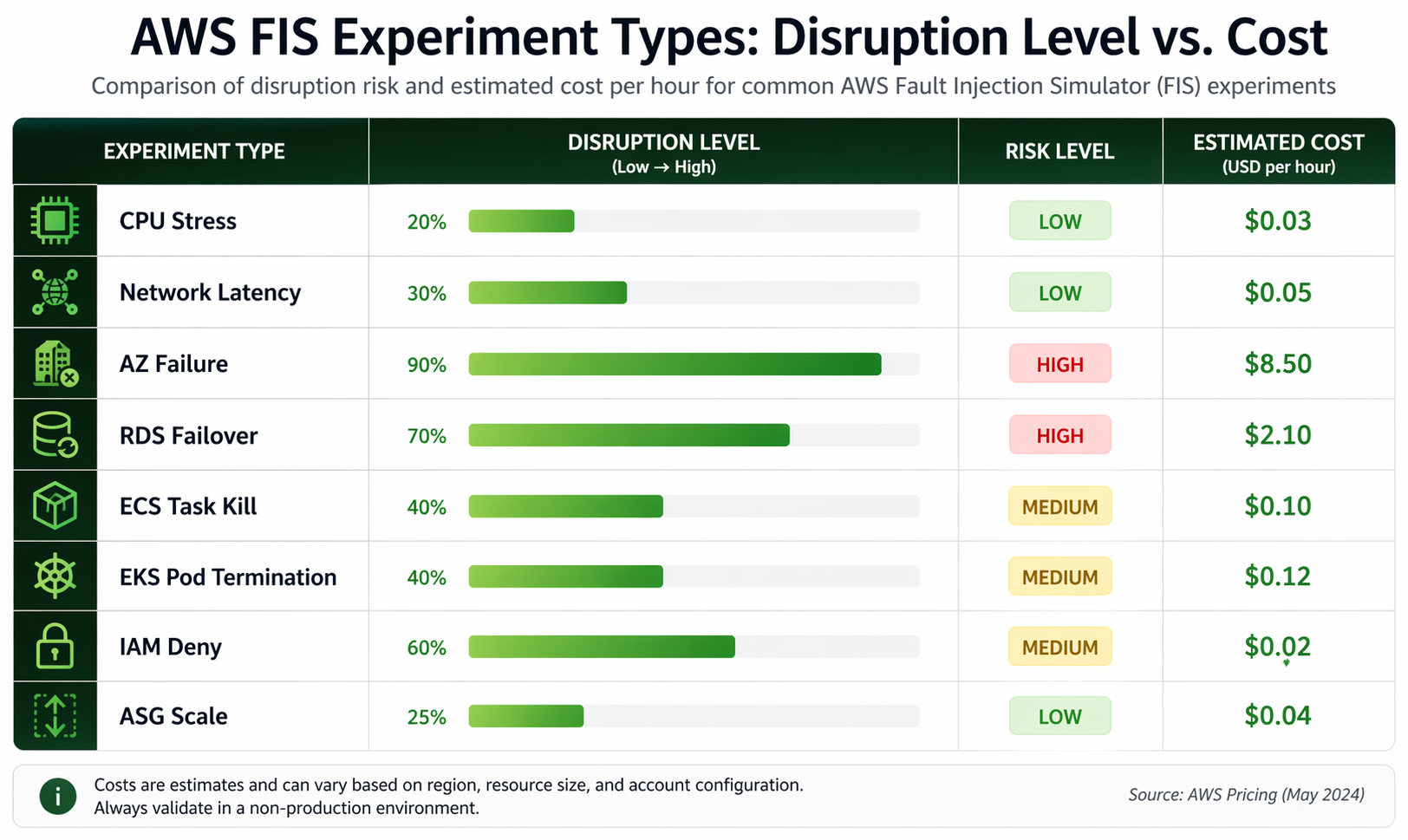
Before you pitch chaos engineering to leadership, you’ll want to have a solid handle on what it actually costs to run FIS experiments. The good news: it’s surprisingly affordable.
FIS Pricing
AWS Fault Injection Simulator pricing is straightforward:
| Component | Cost |
|---|---|
| FIS service usage | $0.10 per action-minute |
| Minimum charge | 1 minute per action |
| Experiment template storage | No charge |
| Experiment logs | No charge |
Cost Examples
| Scenario | Actions | Duration | Estimated Cost |
|---|---|---|---|
| Single CPU stress (1 instance) | 1 | 60 seconds | $0.10 |
| Multi-AZ failover test (3 actions) | 3 | 120 seconds each | $0.30 |
| Weekly game day (5 actions) | 5 | 300 seconds each | $2.50 |
| Monthly full-suite (10 actions) | 10 | 180 seconds each | $3.00 |
| Annual continuous program (50 experiments/year) | 150 total | 180 seconds avg | $45.00 |
Indirect Costs
The FIS service charges are pretty minimal – it’s the indirect costs that add up:
| Cost Factor | Consideration |
|---|---|
| Engineering time | Planning, executing, and debriefing experiments (2-4 hours per game day) |
| Compute overhead | CPU stress and similar actions consume resources that you already pay for |
| Monitoring | Additional CloudWatch custom metrics or dashboard creation |
| Opportunity cost | Time spent on chaos engineering is time not spent on feature development |
All told, a mature chaos engineering program running weekly experiments on a mid-size AWS deployment typically runs somewhere between $500 and $2,000 a year once you factor in engineering time. That’s a rounding error compared to what a single production outage costs.
FIS vs Gremlin vs Chaos Mesh vs Litmus
There’s no shortage of chaos engineering tools out there for AWS. We’ve put together a detailed comparison to help you figure out which one fits your setup best.
| Feature | AWS FIS | Gremlin | Chaos Mesh | Litmus |
|---|---|---|---|---|
| Management | Fully managed SaaS | SaaS (agent-based) | Self-hosted (Kubernetes) | Self-hosted (Kubernetes) |
| AWS Integration | Native (first-class) | Good (agent required) | Limited (Kubernetes only) | Limited (Kubernetes only) |
| EC2 Support | Native | Agent required | No | No |
| ECS Support | Native | Partial | No | No |
| EKS Support | Native | Agent-based | Native (CNCF project) | Native |
| RDS Support | Native | No | No | No |
| IAM Disruption | Native | No | No | No |
| Network Faults | Native (VPC-level) | Agent-based | Pod-level only | Pod-level only |
| Install Required | No | Yes (agent) | Yes (Helm chart) | Yes (Helm chart) |
| Cost Model | $0.10/action-min | From $195/month (team) | Free (OSS) / Paid tier | Free (OSS) / Paid tier |
| Stop Conditions | CloudWatch alarms | Built-in | Workflow-based | Workflow-based |
| CloudFormation | Native | No | No | No |
| Audit Trail | CloudTrail | Gremlin dashboard | Kubernetes events | Kubernetes events |
| Multi-cloud | AWS only | AWS, GCP, Azure | Any Kubernetes | Any Kubernetes |
| Learning Curve | Low (for AWS users) | Medium | Medium-High | Medium-High |
When to Choose Each Tool
| Scenario | Recommended Tool | Reason |
|---|---|---|
| AWS-only workloads | AWS FIS | Native integration, no agents, lowest operational overhead |
| Multi-cloud Kubernetes | Chaos Mesh or Litmus | Portable across any Kubernetes cluster |
| Enterprise with compliance requirements | Gremlin | Mature RBAC, audit logging, compliance features |
| EKS-only with advanced pod chaos | FIS + Chaos Mesh | FIS for infrastructure, Chaos Mesh for pod-level granularity |
| Budget-constrained startup | Litmus (OSS) | Free and capable for Kubernetes workloads |
| Mixed AWS + on-premises | Gremlin | Agent-based approach works across environments |
For most teams whose workloads live primarily on AWS, FIS hits the sweet spot of integration depth, safety features, and operational simplicity. The fact that it natively handles AWS-specific services like RDS, ECS, and IAM disruption is something Kubernetes-only tools just can’t match.
Best Practices
We’ve seen what works and what doesn’t when running chaos engineering programs on AWS. These practices will help you squeeze the most value out of FIS while keeping risk under control.
1. Start Small and Expand Gradually
Never begin with production experiments. Follow this progression:
- Development: Single instance, single action, no stop conditions needed
- Staging: Multiple instances, multiple actions, add stop conditions
- Production (limited): Small percentage of instances, strict stop conditions, during low-traffic windows
- Production (full): Larger blast radius, team game days, scheduled execution
2. Always Define Stop Conditions
Every production experiment must have at least one stop condition. Common patterns:
{
  "stopConditions": [
    {
      "source": "aws:cloudwatch:alarm",
      "value": "arn:aws:cloudwatch:us-east-1:123456789012:alarm:CriticalErrorRate"
    },
    {
      "source": "aws:cloudwatch:alarm",
      "value": "arn:aws:cloudwatch:us-east-1:123456789012:alarm:HighLatencyP99"
    }
  ]
}
3. Tag Everything Consistently
Use a consistent tagging strategy for FIS targets:
| Tag Key | Purpose | Example Value |
|---|---|---|
FIS-Target |
Marks resources eligible for experiments | true |
FIS-Environment |
Restricts experiments to specific environments | staging, production |
FIS-Service |
Identifies the service for targeted experiments | payment-api |
FIS-Criticality |
Indicates how critical the resource is | low, medium, high |
4. Use CloudFormation for Experiment Templates
Version control your experiment templates alongside your infrastructure code. This ensures:
- Templates are reviewed through your standard change management process
- Templates can be deployed consistently across environments
- Historical versions are available for audit and rollback
- Template changes are tracked in git history
5. Integrate with Your Incident Response Process
The goal of chaos engineering is not just to find weaknesses – it is to improve your ability to respond to real incidents. Tie experiment results to your incident response procedures:
- Update runbooks based on findings
- Train on-call engineers using game day scenarios
- Validate alerting thresholds against actual failure behavior
- Document expected recovery times and compare them against measured times
6. Automate Regular Experiments
Do not rely solely on manual game days. Set up automated experiments that run on a schedule:
import boto3

fis = boto3.client('fis')

# List of experiment templates to run on different schedules
WEEKLY_EXPERIMENTS = [
    {'template_id': 'EXT-CPU-STRESS', 'description': 'Weekly CPU stress validation'},
    {'template_id': 'EXT-AZ-FAILOVER', 'description': 'Weekly AZ failover test'},
    {'template_id': 'EXT-ECS-DRAIN', 'description': 'Weekly ECS drain validation'},
]

for experiment in WEEKLY_EXPERIMENTS:
    try:
        response = fis.start_experiment(
            experimentTemplateId=experiment['template_id'],
            clientToken=f'auto-{experiment["template_id"]}-weekly',
            tags={
                'Automation': 'WeeklySchedule',
                'Description': experiment['description']
            }
        )
        print(f"Started: {experiment['description']} -> {response['experiment']['id']}")
    except Exception as e:
        print(f"Failed to start {experiment['description']}: {str(e)}")
7. Document and Share Results
Every experiment should produce a report that answers:
- What was the hypothesis?
- What was the actual behavior?
- What gaps were discovered?
- What improvements are needed?
- Who is responsible for each improvement?
Share these reports with your broader engineering organization to build awareness and support for chaos engineering.
8. Respect the Blast Radius
Use FIS targeting features to control blast radius:
COUNT(n): Target exactlynresourcesPERCENT(n): Targetnpercent of matching resources- Tag-based targeting: Only affect resources explicitly tagged for experiments
- Availability Zone filters: Restrict experiments to a single AZ
9. Coordinate with Stakeholders
Before running experiments – especially in production:
- Notify relevant teams (on-call, SRE, product)
- Schedule during low-traffic periods
- Have a rollback plan documented
- Ensure someone is actively monitoring during the experiment
- Set a clear end time after which the experiment stops automatically
10. Continuously Expand Your Experiment Library
Start with the common failure modes listed below and expand over time:
| Failure Mode | FIS Action | Service Tested |
|---|---|---|
| Instance termination | aws:ec2:terminate-instances |
Auto Scaling |
| CPU exhaustion | aws:ec2:cpu-stress |
Scaling, monitoring |
| Network partition | aws:network:blackhole-route |
Multi-AZ failover |
| Database failover | aws:rds:failover-db-cluster |
Application reconnection |
| Pod termination | aws:eks:terminate-pods |
Kubernetes rescheduling |
| Task failure | aws:ecs:stop-task |
ECS service recovery |
| IAM revocation | aws:iam:revoke-role-policy |
Permission handling |
| ASG instance loss | aws:ec2:asg-terminate-instances |
Auto Scaling response |
Conclusion
AWS Fault Injection Simulator takes what used to be a niche, intimidating practice and makes it approachable for any team running on AWS. Between the native integration across EC2, ECS, EKS, RDS, and IAM and the built-in safety nets like stop conditions and CloudWatch hooks, FIS clears away the operational hurdles that kept most teams from trying chaos engineering in the first place.
Here’s the thing: resilience isn’t something you just assume you have. You prove it, over and over, through controlled experiments. Start small in development, graduate to staging, and eventually work your way up to running real experiments in production. Build a culture where finding a weakness is something to celebrate, not something to sweep under the rug.
If your team is already invested in the AWS ecosystem, FIS is the obvious choice. No agents to manage, first-class support for AWS-specific services, tight integration with IAM and CloudWatch, and a price tag that’s a fraction of what third-party alternatives charge.
Pair FIS with solid CloudWatch monitoring, reliable backup strategies, and architectures built for high availability, and you’ve got a resilience strategy that’ll actually hold up when things go wrong.
The next outage is coming. The real question is whether your systems – and your team – will be ready for it. Go start your first FIS experiment today.
Explore more like this

Cloud IoT Security: Zero Trust, Identity, and Signed Updates
On September 11, 2026, the Cyber Resilience Act’s incident-reporting rules start applying in the European Union. That is 22 days after this article’s publication date. A manufacturer that learns of...

Kill the Docker Hub Token: OIDC Trust for GitHub Actions
On July 31, 2026, Docker shipped OIDC connections for GitHub Actions to any organization on a Docker Team, Docker Business, or Docker Hardened Images subscription, plus organizations in the Docker-Sponsored...

Bedrock Web Search: Grounding an Agent Without Building a Scraper
On August 4, 2026, AWS made Web Search on Amazon Bedrock generally available, and the entire integration surface is one JSON object: {"type": "web_search"}. That is the whole change from...

Comments