
AWS IAM Roles vs Policies: The Complete Guide

A tweet with 52,894 impressions last September put it plainly: “master IAM roles and policies” was the single skill that separated AWS beginners from people who could actually build in production. Not EC2. Not S3. IAM. That’s because every AWS API call — every single one — goes through IAM before it does anything. Get IAM wrong and your Lambda can’t read from S3. Get it catastrophically wrong and you’ve handed an attacker the keys to your entire account.
This guide covers what IAM is actually doing underneath, why roles behave differently from users, how policy evaluation works (the order matters more than most people realize), and the gotchas that trip up engineers who’ve been on AWS for years.
What IAM Is Actually Doing
Every AWS API call passes through IAM before it reaches the actual service. Your EC2 instance calls s3:GetObject. Before S3 responds, AWS has already checked: which identity made the call, what policies apply to it, whether any deny exists, and what the bucket policy says about this caller. This evaluation happens in milliseconds and runs on every request. A misconfigured IAM policy doesn’t produce a partial failure. It produces a hard block, usually with a terse AccessDenied that tells you nothing about which of the five policy types caused it.
Three kinds of identities exist in IAM, and each works differently enough that mixing them up causes real problems.
Users hold long-term credentials — a password for console access or an access key pair for programmatic calls. That aws configure command on your laptop created an IAM user. The credentials don’t expire unless you rotate them manually. If an access key leaks into a public GitHub repo (it happens constantly, even to experienced teams), the attacker keeps access until you delete that specific key. GitHub Actions supports OIDC-based credential federation — no static keys stored, short-lived credentials per job. The GitHub Actions deploy to AWS guide covers the full OIDC setup. For human console access, users are fine. For anything automated or application-level, they’re the wrong tool.
Groups exist purely for administrative convenience — attach a policy to the group and every member of that group inherits it. That’s the whole job. Groups aren’t identities in the way IAM actually evaluates permissions. You can’t put a group in a trust policy’s Principal field. AWS services can’t authenticate as a group. Engineers coming from Active Directory or LDAP usually expect group-based role assumption to work and discover it doesn’t only after writing a trust policy that silently fails.
Roles are a different animal entirely. There’s no password, no access key to generate or store. When something assumes a role — a Lambda function, an EC2 instance, a CI/CD runner — it gets short-lived credentials from STS, good for anywhere between 15 minutes and 12 hours. Those credentials expire on their own. An attacker who steals them gets a shrinking window, not permanent access. For any automated workload, this is the right model.
Policies: The JSON That Decides Everything
Strip away the console and the SDKs and what you’re left with is JSON. Every permission in AWS is encoded in a policy document. The document lists actions (the API calls), resources (which ARNs those actions target), and an effect — either Allow or Deny. That’s the whole model. Here’s a minimal example:
{
  "Version": "2012-10-17",
  "Statement": [
    {
      "Effect": "Allow",
      "Action": "s3:GetObject",
      "Resource": "arn:aws:s3:::my-bucket/*"
    }
  ]
}
Effect is Allow or Deny. Action names the API call — you can list several, use a wildcard like s3:*, or scope it tightly to a single operation. Resource is the ARN it applies to. Condition is optional, but it’s where you add real nuance: restrict by IP address, require MFA, limit to a specific time window, or check request tags. One policy can hold multiple statements, and each is evaluated independently.
The Five Policy Types
When a permission error shows up, the first question is which type of policy is blocking it. AWS has five, and they work at different layers.
Identity-based policies are what most people work with day-to-day. They attach directly to a user, group, or role and define what that thing can do. Attaching AmazonS3ReadOnlyAccess to a Lambda execution role? Identity-based policy. Creating a customer-managed policy with specific DynamoDB table permissions and assigning it to a CI role? Same category. If you’ve used IAM at all, you’ve used these.
Bucket policies. Lambda resource policies. SQS queue policies. These sit on the resource side — you’re not attaching permissions to a caller, you’re telling the resource who’s allowed to touch it. I always think of it as the resource having opinions about its own access control. For same-account stuff this is mostly optional (identity-based policies handle it fine), but cross-account scenarios are where resource-based policies earn their keep. Say Account B needs read access to an S3 bucket in Account A. Update the bucket policy in Account A to trust Account B’s role. Done. No changes needed in Account B’s IAM setup at all.
Permission boundaries are where most confusion lives. A boundary sets a ceiling — it defines the maximum permissions an identity can ever have. But it doesn’t grant anything by itself. A role with AdministratorAccess attached and a permission boundary of s3:* can only do S3 operations. Flip it (boundary is AdministratorAccess, policy is s3:*) and same result — the role can only do S3 operations. Effective permissions are always the intersection. Boundaries exist specifically to let admins delegate role creation to developers without risking privilege escalation.
Service Control Policies (SCPs) sit above all of this at the AWS Organizations level. An SCP capping a member account overrides everything inside that account — even an AdministratorAccess identity-based policy can’t exceed what the SCP allows. SCPs don’t touch the management (root) account, which is one more reason to keep the management account locked down.
Session policies come into play when you call sts:AssumeRole directly, passing a policy inline to further restrict the resulting session. Lambda applies its own session policy automatically per invocation. For most engineers, this is background behavior — but it matters when debugging why a role with broad permissions is acting restricted in a specific context.
How Policy Evaluation Actually Works
Most permission debugging goes wrong because engineers don’t know the evaluation order. AWS works through five checks before it lets a request through.
First it looks for an explicit deny anywhere — SCPs, resource policies, identity policies, anywhere. One deny kills the request immediately. No further evaluation. Second, it checks SCPs. If your organization has an SCP that doesn’t allow the action, denied, regardless of what’s in the identity-based policy. Third, resource-based policies: for same-account access, one of these alone can grant it. Fourth, identity-based policies and permission boundaries together — effective permissions are the intersection. Fifth, session policies if a scoped session is active.
The rule you can’t break: explicit deny wins over everything. Stack ten allow statements on top of a single deny and the deny wins. This is intentional. A security team can lock down high-risk API calls at the SCP level, and no developer policy can override it.
For cross-account access, the logic is stricter. Both the identity-based policy on the caller and the resource-based policy (or the role trust policy) on the target must allow the action. One side allowing it isn’t enough.
Roles in Depth: Trust Policies vs Permission Policies
Every role has two policy attachments that people regularly confuse.
The trust policy answers: who is allowed to assume this role? It’s a resource-based policy attached to the role itself. Here’s a trust policy that lets Lambda assume a role:
{
  "Version": "2012-10-17",
  "Statement": [
    {
      "Effect": "Allow",
      "Principal": {
        "Service": "lambda.amazonaws.com"
      },
      "Action": "sts:AssumeRole"
    }
  ]
}
The Principal field specifies the trusted entity. It can be an AWS service (lambda.amazonaws.com), a specific IAM user or role ARN, or an entire AWS account ("AWS": "arn:aws:iam::123456789012:root"). Without a valid trust policy, nobody can use the role — even if its permission policies would allow the desired action.
The permission policies answer: what can this role do once it’s assumed? These work identically to policies on users. You can attach managed policies (AWS-provided or customer-managed) or inline policies (embedded directly in the role). The attached permission policies define the capabilities of whoever assumed the role.
The most common debugging session: a role has the right permissions, but assuming it fails with User: arn:aws:iam::123456789012:user/dev is not authorized to perform: sts:AssumeRole on resource: arn:aws:iam::123456789012:role/MyRole. People spend an hour reviewing permission policies, trying different managed policies, re-attaching things. None of that fixes it. The issue is always the trust policy — either the Principal is wrong, or sts:AssumeRole isn’t listed as the Action, or the condition isn’t satisfied. Start there.
Three Role Patterns You’ll Use Constantly
Start with EC2 instance profiles. An EC2 instance can’t directly assume a role — you wrap the role in an instance profile (a container that holds exactly one role) and attach that to the instance. Once attached, code on the instance calls the EC2 metadata endpoint at http://169.254.169.254/latest/meta-data/iam/security-credentials/RoleName and gets back temporary credentials that rotate every hour without any intervention. The AWS STS service manages the refresh cycle. Your application code never holds a credential. That’s the entire security win.
Lambda works the same way but simpler. Every function has an execution role, and Lambda assumes it each time the function is invoked. The minimum viable execution role attaches AWSLambdaBasicExecutionRole — that covers CloudWatch Logs. Everything else your function needs (S3 reads, DynamoDB writes, Secrets Manager lookups) goes on top. Keep the execution role scoped tightly; a function that only reads from one S3 bucket shouldn’t have AmazonS3FullAccess. The Lambda + Secrets Manager rotation post shows a concrete example of how execution roles are scoped for a real use case.
Cross-account access is the third pattern, and it’s where roles really show their value. Say Account A (your deployment account) needs to create resources in Account B (a production account). In Account B, you create a role with the required permissions and a trust policy naming Account A’s CI role as a trusted principal. Account A’s CI role then needs sts:AssumeRole permission pointing at the Account B role ARN. The pipeline calls aws sts assume-role, receives credentials scoped to Account B, and uses them for the deployment. No static credentials exchanged between accounts. The IAM cross-account roles guide covers this in full — including ExternalId for third-party access, organization-wide trust with aws:PrincipalOrgID, and multi-account CI/CD pipeline patterns. The OPA policy-as-code guide covers how to layer permission boundaries and SCPs on top of this pattern to prevent escalation.
Six Gotchas That Will Cost You Time
S3 resource ARNs burned me twice before I stopped making the same mistake. arn:aws:s3:::my-bucket is the bucket itself — s3:ListBucket targets this. arn:aws:s3:::my-bucket/* covers the objects inside — s3:GetObject needs that one. Many developers write a policy with only one and then spend 45 minutes wondering why half their operations are failing. The fix is including both ARNs in the resource list. I’ve started keeping a snippet for this exact pattern because I’ve seen it bite people too many times.
Trust policies don’t accept groups as principals. You can’t write a trust policy saying “let this IAM group assume the role.” Groups aren’t identities in the sense AWS STS understands — they’re just administrative buckets. Anyone coming from LDAP or Active Directory will hit this and find it surprising.
The permission boundary misconception is the one that causes the most debugging time. A boundary doesn’t grant anything. It restricts. If a role has AdministratorAccess attached but a permission boundary of s3:GetObject, the role can only do s3:GetObject. Running the scenario in reverse — boundary is AdministratorAccess, identity-based policy is s3:GetObject — the result is identical. The effective permission set is always the intersection of what the boundary allows and what the policy grants. Always.
Condition keys within a single Condition block are AND logic — all of them must be true for the statement to apply. If you need OR logic (allow from this IP range or that one), write two separate statements. The JSON structure makes this non-obvious.
SCPs don’t touch the management account. An organization-level SCP that denies ec2:* applies to every member account, but the management account root user remains unrestricted. This is intentional — the management account needs to be able to fix broken SCPs — and it’s exactly why the management account should be treated as an emergency-only resource, not a place where anyone runs day-to-day workloads.
Default AssumeRole sessions last one hour. The ceiling is set by the role’s MaxSessionDuration property, which defaults to 1 hour and can go up to 12. Long CI/CD pipelines that don’t bump this setting will hit credential expiry mid-run and fail with ExpiredTokenException. The fix is straightforward: set MaxSessionDuration on any role used by pipelines that might run past the default. Missed this once on a Terraform plan that ran for 90 minutes — not a mistake worth repeating.
Creating Your First Role
Reading about IAM only goes so far. Here’s a concrete CLI walkthrough that creates a Lambda execution role with DynamoDB write access — the kind of role you’ll build dozens of times once you start working with serverless workloads:
# 1. Create the trust policy document
cat > /tmp/trust-policy.json << 'EOF'
{
  "Version": "2012-10-17",
  "Statement": [{
    "Effect": "Allow",
    "Principal": { "Service": "lambda.amazonaws.com" },
    "Action": "sts:AssumeRole"
  }]
}
EOF

# 2. Create the role
aws iam create-role \
  --role-name MyLambdaDynamoRole \
  --assume-role-policy-document file:///tmp/trust-policy.json

# 3. Attach managed policies
aws iam attach-role-policy \
  --role-name MyLambdaDynamoRole \
  --policy-arn arn:aws:policy/service-role/AWSLambdaBasicExecutionRole

aws iam attach-role-policy \
  --role-name MyLambdaDynamoRole \
  --policy-arn arn:aws:policy/AmazonDynamoDBFullAccess

# 4. Get the role ARN (use this in your Lambda function configuration)
aws iam get-role --role-name MyLambdaDynamoRole \
  --query 'Role.Arn' --output text
For a tighter setup in production, replace AmazonDynamoDBFullAccess with a customer-managed policy scoped to the specific table ARN and the specific actions (dynamodb:GetItem, dynamodb:PutItem, etc.) your function actually uses. If you’re using a single-table design where multiple entity types share one table, the DynamoDB single-table design guide covers how to scope IAM policies to the table’s dynamodb:LeadingKeys condition for multi-tenant isolation.
When to Use What
Use IAM users only for human access to the AWS console or CLI, and only when you can’t use IAM Identity Center (SSO). For any organization with more than two accounts or five engineers, the IAM Identity Center guide covers how to set up SSO with permission sets and centralized multi-account access — the right model for human credentials at scale. Rotate access keys every 90 days at most. For any application, script, or service — even running on a laptop — use roles with STS credentials via aws sts assume-role. For API Gateway authorization that validates JWT tokens from Cognito, the Cognito JWT authorizer approach is the right pattern rather than IAM authorization on every route.
Use permission boundaries when you’re delegating role creation to developers. This lets them create roles within a bounded scope without being able to grant themselves more access than you’ve authorized. The IAM permission boundaries guide covers the full delegation setup — including the policy conditions that prevent privilege escalation by locking down the boundary policy itself.
Use SCPs at the organization level to enforce guardrails: deny ec2:CreateVpc in accounts that should only use a shared VPC, deny iam:CreateUser to push everyone toward SSO, deny specific regions to contain workloads to approved locations. SCPs are your safety net below everything else. The AWS Organizations and Control Tower guide covers how to structure OUs, apply SCPs across accounts, and automate account vending with baseline controls.
The principle of least privilege isn’t just a security recommendation. It’s the practice of actually knowing what your code needs, which forces you to understand your own architecture. Start with a wide policy while developing, then narrow it before shipping to production. AWS IAM Access Analyzer can analyze CloudTrail logs and suggest the minimum required permissions based on actual usage — a useful tool once you’ve run a workload for a few weeks.
One thing worth knowing before you get too deep into planning: IAM itself costs nothing. Users, groups, roles, and policies are all free. The only cost is IAM Access Analyzer’s unused access analysis feature, which runs $0.50 per role per month. Most teams enabling it find it worth every cent — a misconfigured role that gets exploited costs orders of magnitude more to remediate.
Start with roles. Use managed policies as a baseline. Narrow to inline policies for production. Set permission boundaries on developer-created roles. Add SCPs as your account structure matures. That progression covers 95% of real-world IAM setups.
Explore more like this

Aurora Serverless v2 + Bedrock: AI Database Queries in 2026
I connected Bedrock to our Aurora cluster last month. The first thing I asked it was “show me all customers who churned in Q1 but came back in Q2” —...
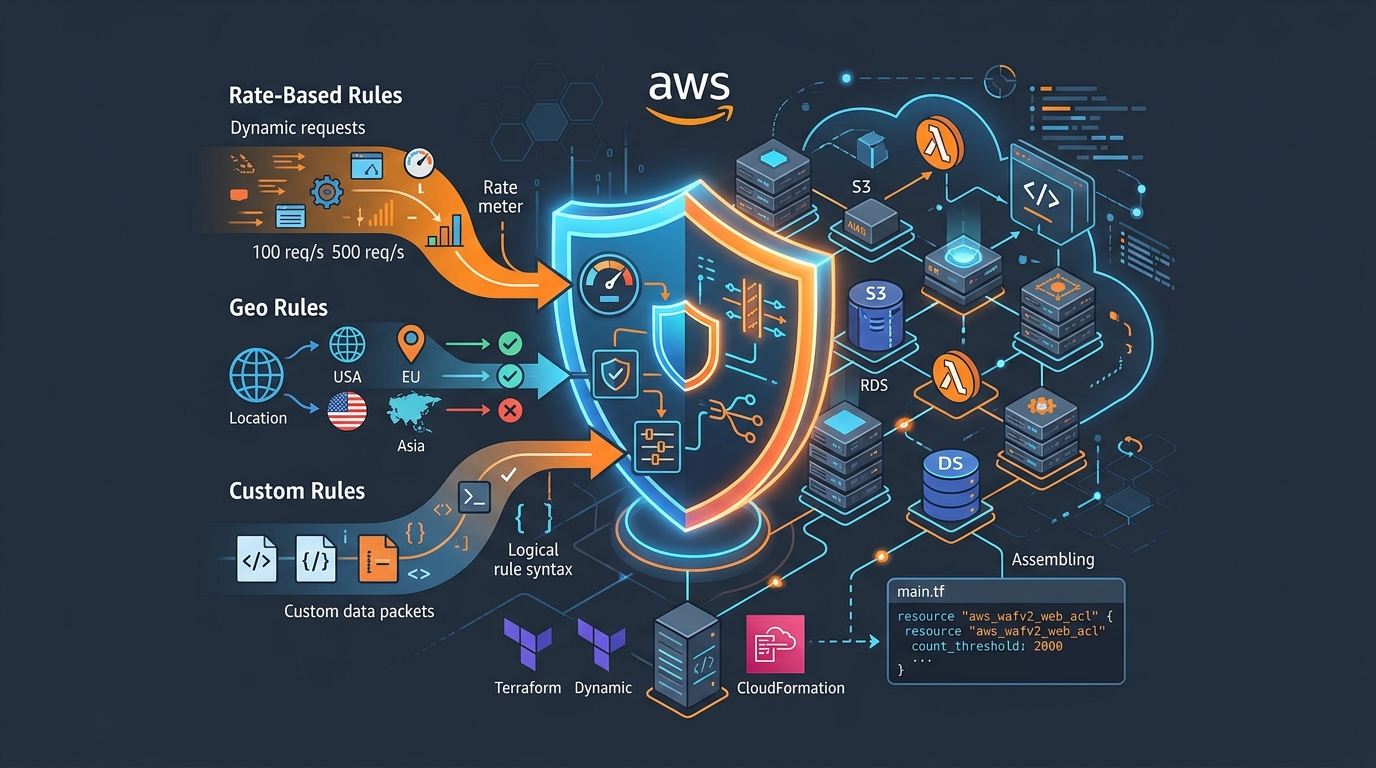
AWS WAF Rules Deep Dive: Rate-Based, Geo, and Custom Rules
WAF is one of those services where the default managed rules get you 80% of the way there. The last 20% is where it gets interesting.
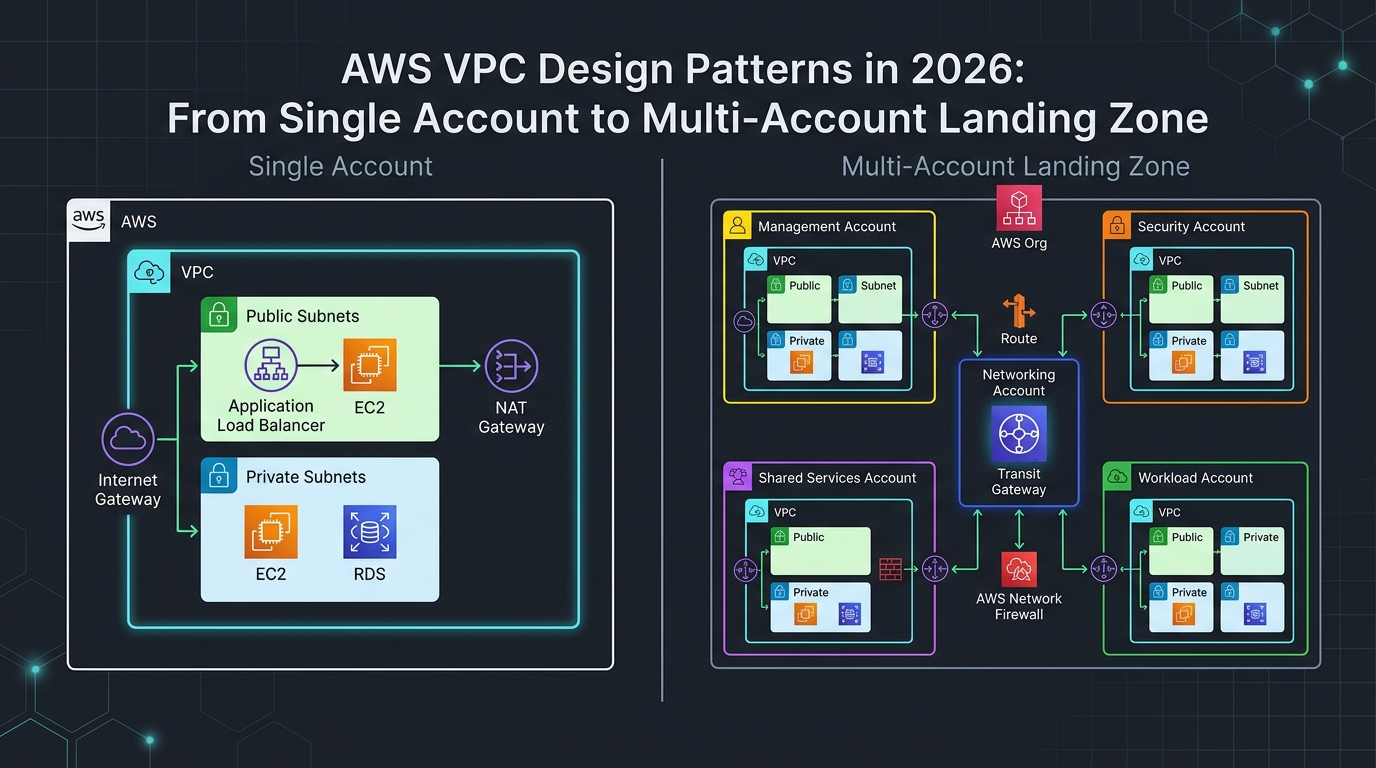
AWS VPC Design Patterns in 2026: From Single Account to Multi-Account Landing Zone
The VPC decisions you make on day one will follow you for years. I’ve lived through the consequences—redesigning a network that was built without proper CIDR planning, watching a simple...

Comments