
Build Docker Image on Gitlab [without dind and with AWS ECR]

![Build Docker Image on Gitlab [without dind and with AWS ECR]](/wp-content/uploads/sites/5/2021/09/20210915_071225_0000.png)
Building a Docker image on GitLab sounds simple, and it usually is – until you hit caching problems or try to push to a remote registry. I ran into these issues myself, so let me walk through what actually works.
GitLab is a DevOps platform that handles source control, CI/CD, and registry hosting in one place. What makes it useful for Docker builds is the Runner system.
What does a Runner actually do?
A Runner is just a machine (VM, Docker container, bare metal) running a daemon that picks up jobs from GitLab. GitLab itself doesn’t run your builds – it hands them off to Runners. You can have multiple Runners attached to multiple GitLab instances.
The useful part: a Runner can run Docker inside Docker. That means you don’t have to install build dependencies directly on the Runner server. Each job gets a clean container.
To register a Runner, you specify a base Docker image that your builds run inside.
You might wonder why this matters. When you register a Runner, you probably picked a generic image like Alpine. That works fine until your build needs specific tools that aren’t in the default image.
At some point, you’ll need a custom image with your project’s dependencies baked in. And you probably don’t want to build that image manually outside GitLab and then reference it inside your pipeline.
When do you need a custom Docker image?
It depends on your project. A straightforward Java app using Maven doesn’t need one – just grab the official Maven image from Docker Hub. Here’s a Java pipeline on GitLab that does exactly that.
But what if your project has mixed dependencies? Say you have a Java project that also has TypeScript files requiring npm to compile.
Two ways to handle mixed dependencies
First option: split the pipeline into separate stages. One stage compiles Java, another compiles TypeScript using the official Node image.
Second option: configure Maven to build the TypeScript code during the build phase using the frontend-maven-plugin.
But if your application has unique requirements – special OS packages, specific configurations that change between builds – that’s when you need to build your own image.
You can create a dedicated project (or a stage in your existing project) to build this Docker image, then use it in the next stage. You might worry that building an image every time will slow things down. In practice, it doesn’t. The first run takes a while, but the Runner caches the image in its local Docker registry. Subsequent runs reuse that cached image and finish fast.
There’s also the case where your project’s output is a Docker image – say, a custom Tomcat image you’ll deploy to Kubernetes. In that case, you need to push the image to a remote registry like Docker Hub or AWS ECR.
Here’s a basic example:
variables:
  REGISTRY: "XXXXXXXXXXXX.dkr.ecr.us-east-1.amazonaws.com/tomcat"
  FINAL_NAME_TOMCAT: ${REGISTRY}/api:tomcat-$CI_COMMIT_REF_NAME-$CI_JOB_ID

build-tomcat:
  image: docker:cli
  stage: build
  script:
    - docker build -t $FINAL_NAME_TOMCAT .
Resolving the “Docker daemon not running” error
The example above looks straightforward, but you’ll probably hit this error:
Cannot connect to the Docker daemon at unix:///var/run/docker.sock. Is the docker daemon running?
Here’s what’s happening. When you install Docker, it has two parts: the client and the daemon. They don’t have to run on the same machine. You can point the client at a remote daemon using the DOCKER_HOST environment variable:
export DOCKER_HOST=tcp://server.example.com:2376
After setting that, all your Docker commands run against the remote host.
But wait – in our GitLab CI setup, the build runs inside a container on the Runner server. That server already has the Docker daemon running. We just need a way to reach it from inside the build container.
Using the Docker socket
Docker creates a Unix socket file at /var/run/docker.sock when the daemon is running. You can point DOCKER_HOST at it:
DOCKER_HOST: "unix:///var/run/docker.sock"
But if you try this, you’ll get the same error. The socket file exists on the Runner’s host machine, not inside the build container. The container can’t see it.
The fix is to share that socket between the Runner and the containers it spawns. You do this when registering the Runner.
Note: GitLab changed the runner registration process in version 17.0 (May 2024). The old registration token method is deprecated. You now create a runner in the GitLab UI (Settings > CI/CD > Runners) and get an authentication token prefixed with
glrt-. See the official registration docs for the current process.
gitlab-runner register \
  --token glrt-YOUR_RUNNER_TOKEN \
  --url https://gitlab.example.com \
  --name my-runner \
  --executor docker \
  --docker-image alpine \
  --docker-volumes '/var/run/docker.sock:/var/run/docker.sock'
Replace the values to match your setup.
This approach is clean because you don’t need to set DOCKER_HOST anywhere in your .gitlab-ci.yml. The socket gets mounted automatically into every container the Runner creates. Since the default value of DOCKER_HOST is already /var/run/docker.sock, everything just works.
This also gives you caching for free. When you build a Docker image this way, the image is stored in the Runner’s local Docker registry. The next pipeline run reuses those cached layers, even though each job gets a fresh container.
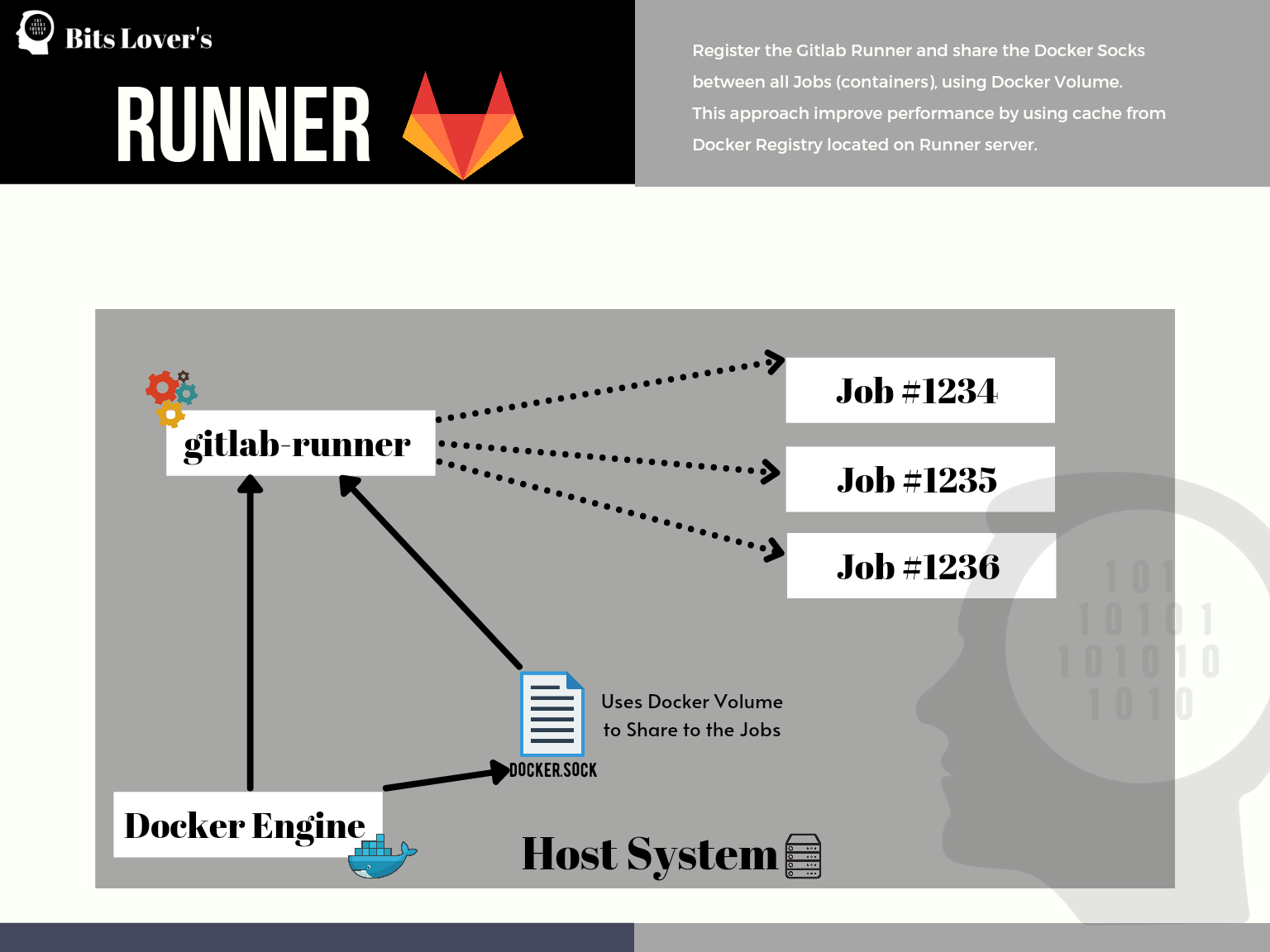 Build Docker Image on Gitlab using cache on Runner server
This is essentially docker-in-docker, but without the overhead of spinning up a separate daemon.
In the example above, we’re only building the image. We’re not pushing it anywhere. To push to a remote registry, you need to log in first. The login process differs depending on which registry you’re using.
One caveat: if you’re running your Runner on AWS Fargate, you lose Docker layer caching since each build gets a fresh environment.
Pushing images to AWS ECR
Here’s how to log in and push images to AWS ECR. If you’re packaging Lambda functions as container images, Lambda Container Images from GitLab CI to ECR covers the full workflow including SAM integration and ECR lifecycle policies.
The old aws ecr get-login command is deprecated. AWS now recommends using get-login-password:
aws ecr get-login-password --region us-east-1 | docker login --username AWS --password-stdin YOUR_ACCOUNT_ID.dkr.ecr.us-east-1.amazonaws.com
Make sure your EC2 instance (the Runner) has the right IAM role configured. You can also use access keys, but IAM roles are the recommended approach.
The ECR auth token expires after 12 hours, so run the login command before each push.
Here’s the updated pipeline example:
variables:
  REGISTRY: "XXXXXXXXXXXX.dkr.ecr.us-east-1.amazonaws.com/tomcat"
  FINAL_NAME_TOMCAT: ${REGISTRY}/api:tomcat-$CI_COMMIT_REF_NAME-$CI_JOB_ID

build-tomcat:
  image: docker:cli
  stage: build
  script:
    - docker build -t $FINAL_NAME_TOMCAT .
    - aws ecr get-login-password --region us-east-1 | docker login --username AWS --password-stdin $REGISTRY
    - docker push $FINAL_NAME_TOMCAT
Sometimes you need to build an image just to use in the next stage – like a build container that has your compilation dependencies. In that case, you don’t need to push to a remote registry at all.
Tip: Always use GitLab CI variables instead of hardcoding values.
Here’s how that looks:
variables:
  AWS_REGION: us-east-1
  STACK_NAME: bitslovers-service
stages:
  - prep
  - deploy
Prep:
  image: docker:cli
  stage: prep
  script:
    - docker build -t build-container .
Deploy:
  image:
    name: build-container:latest
  stage: deploy
  script:
    - pip install awscli
    - pip install aws-sam-cli
    - aws configure set region ${AWS_REGION}
    - <a href="/multi-account-aws-sam-deployments-with-gitlab-ci-cd/">sam deploy</a> --template-file template.yml --stack-name $STACK_NAME
We build a Docker image called build-container in the prep stage. It has the dependencies we need for the deploy stage. The image stays on the Runner’s local registry, so the next build is fast since the image already exists.
The docker:dind alternative
There’s a second way to build Docker images on GitLab: use the docker:dind service. This runs a separate Docker daemon as a service container.
variables:
  DOCKER_REGISTRY: XXXXXXXX.dkr.ecr.us-east-1.amazonaws.com
  AWS_DEFAULT_REGION: us-east-1
  REPOSITORY_NAME: bitslovers-app
  DOCKER_HOST: tcp://docker:2376
  DOCKER_TLS_CERTDIR: "/certs"
publish:
  image:
    name: docker:cli
    entrypoint: [""]
  services:
    - docker:dind
  before_script:
    - apk add --no-cache aws-cli
    - aws --version
    - docker --version
  script:
    - docker build -t $DOCKER_REGISTRY/$REPOSITORY_NAME:$CI_PIPELINE_IID .
    - aws ecr get-login-password --region $AWS_DEFAULT_REGION | docker login --username AWS --password-stdin $DOCKER_REGISTRY
    - docker push $DOCKER_REGISTRY/$REPOSITORY_NAME:$CI_PIPELINE_IID
Note: I’m using docker:cli as the job image and docker:dind as the service. The CLI-only image is smaller and avoids having two daemons running. The DOCKER_HOST points to the DinD service over TLS.
The main advantage of this approach is cleanup. Images aren’t stored on the Runner’s local registry, so you don’t have to worry about disk space. When the pipeline finishes, the service container and its data are gone.
The downside is speed. Starting the DinD service adds overhead, and you lose layer caching between runs unless you configure --cache-from with a remote registry.
Conclusion
Both approaches work. I prefer the socket mount method over DinD for most cases. DinD is slower to start and loses layer caching between pipeline runs because each job creates a fresh daemon. The socket approach shares the Runner’s existing daemon, so cached layers persist across builds.
That said, the socket method has a security trade-off: jobs running on the same Runner can potentially access each other’s images. For shared runners in a multi-team environment, DinD (or better yet, Kaniko) gives you better isolation.
For private runners where you control who runs what, the socket mount is hard to beat.
Related Posts
Setup GitLab CI to authenticate with AWS ECR without storing long-lived credentials.
SBOM and Supply Chain Security in GitLab CI — add software bill of materials generation and image signing to your Docker build pipeline.
GitLab CI Artifacts — pass your built Docker image metadata and other files between pipeline jobs.
How to build a Javascript project on Gitlab.
How to execute Cloud Formation from Gitlab.
How to deploy Elastic Beanstalk using CI/CD.
Effective Cache Management with GitLab CI — layer caching, Docker volume strategies, and cache key patterns that actually work across pipeline runs.
Explore more like this

Kill the Docker Hub Token: OIDC Trust for GitHub Actions
On July 31, 2026, Docker shipped OIDC connections for GitHub Actions to any organization on a Docker Team, Docker Business, or Docker Hardened Images subscription, plus organizations in the Docker-Sponsored...

Lambda SQS Provisioned Mode Now Scales to 10,000 Pollers: The Throughput Math That Decides If You Need It
AWS raised the poller ceiling on August 3, 2026. Provisioned Mode for Amazon SQS event source mappings went from a maximum of 2,000 event pollers to 10,000, which puts the...

CloudWatch Managed Prometheus Collectors on EKS: Delete the Scraper, Keep the Metrics
On July 31, 2026, AWS shipped managed Prometheus collectors for Amazon CloudWatch. The pitch is short: you hand CloudWatch a scrape configuration and a VPC connection, and AWS provisions, scales,...

Comments